
Use this guide to choose between a field in a quote document, an input for your sales team and an option on the shed itself.
Choose the right place
| What you want to do | What to use | Where to look |
|---|---|---|
| Show a job detail or calculated result in a quote or contract | Document variable | Instant Quoting > Reports > Cheat Sheet |
| Let your sales team enter or choose a value when quoting | Public Variable | Instant Quoting > Pricing Database > Variables |
| Record a company-specific choice on the shed | Shed Attribute | Settings in the 3D designer, under Shed Attributes |
These are different places to work with information. A field name in a Word template is not automatically the same as a variable name in your pricing database.
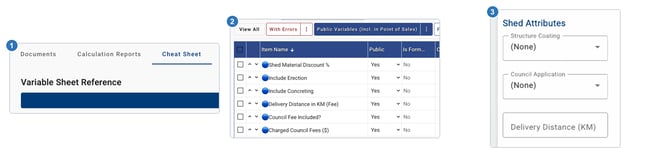
Three places for three jobs: (1) the Cheat Sheet for document fields, (2) the Public Variables view for sales inputs and (3) Shed Attributes in the designer's Settings. This combines three ShedMate screens.
Document variables put information in your documents
Document variables are the tags in your Word quote and contract templates. They tell ShedMate which information to put in the generated document.
Open Instant Quoting > Reports > Cheat Sheet and use Generate to get the field reference for your setup. Copy the exact field name and required format instead of guessing from a label you see elsewhere. Preview the finished document on a test job before using a changed template with a customer.

(1) Open the Cheat Sheet tab in Reports. (2) Click Generate to get the field reference for your setup.
Public Variables give your sales team quote inputs
Open Instant Quoting > Pricing Database > Variables. The list has separate Public and Is Formula columns, and a Public Variables (Incl. in Point of Sales) view.

(1) The Variables tab. (2) Public shows whether a variable is a sales input. (3) Is Formula shows whether its value is calculated.
Public controls whether the variable is available as a sales input in Point of Sales. A delivery-distance input is one example. Formula describes whether a value is calculated. They describe different settings; a formula variable is not a separate document-template field.
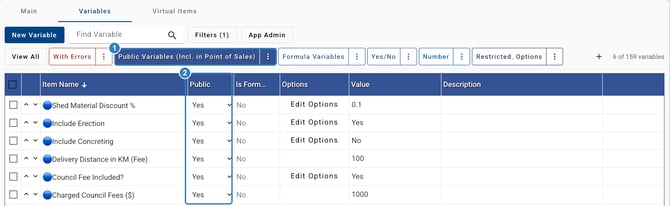
(1) The Public Variables view lists the variables your sales team can enter in Point of Sales. (2) Each one reads Yes under Public.
Before changing a variable, check which calculations use it and what the value means. For example, entering a distance is different from entering a delivery charge. Check the result on a test quote. Making a variable public does not replace your company's user permissions or pricing approval process.
Shed Attributes record choices on the shed
In the 3D designer, open Settings and look for Shed Attributes. Your company's setup determines which options appear. Examples include a structure coating, council-application choice or delivery distance.
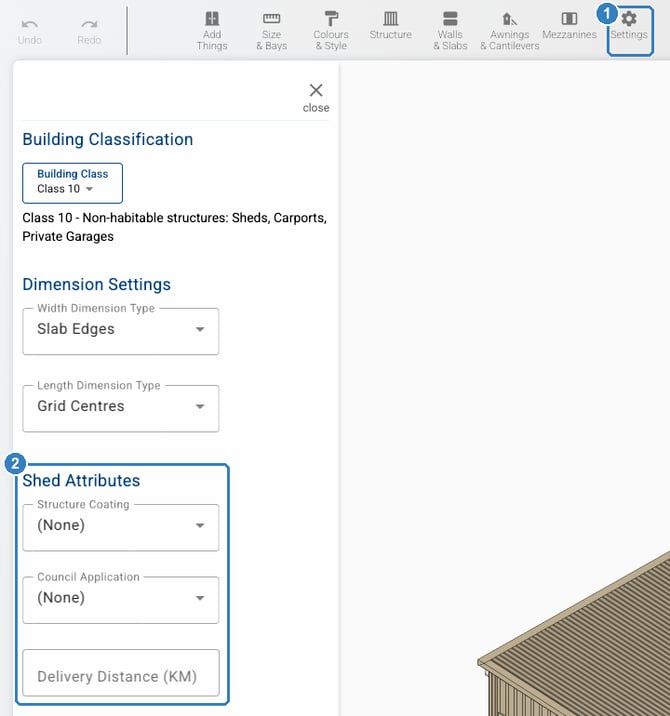
(1) Open Settings in the 3D designer. (2) Your company's Shed Attributes appear in the Settings panel.
An attribute can be used by pricing calculations when the required link has been configured. Changing an option does not, by itself, prove that the right charge has been added. Check the calculation and resulting quote too.
If you need a new attribute or different options, email support@shedmate.com.au with your company name, the choices you need and how they should affect the shed or quote. Support can review what your setup supports. Avoid creating a second input for the same purpose without checking how the existing one is used.
If you are not sure which one you need
Tell support what you want the customer or sales team to see, where it should appear, and whether it should affect the price. Include a screenshot and an example job. You do not need to know the technical field name before asking.