
Choose the template for what you want to change: your prices, the documents you send, or the shed you start designing from.
Master Template and pricing databases
The Master Template is a prepared starting point for your pricing database. It contains items and calculations that you adapt to your business and supplier prices.
Open a draft or job, then Instant Quoting and Pricing Database to review the items. Check the database name and loaded version in the footer so you know which setup you are using. Confirm which database your team maintains before changing or replacing it.
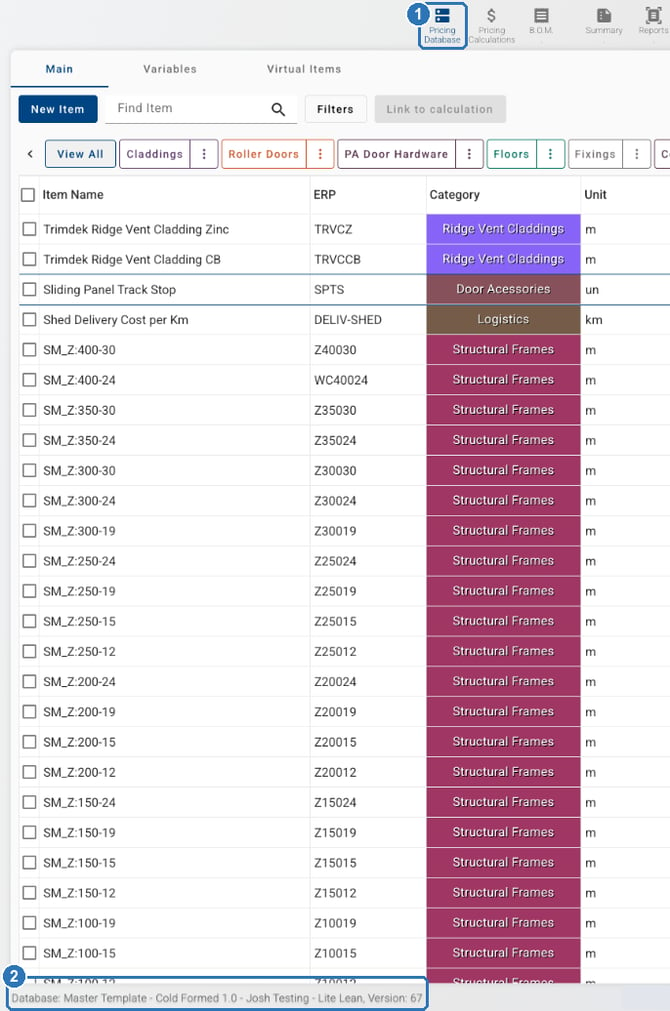
(1) Open Pricing Database in Instant Quoting to review the items. (2) The footer shows the database name and the version loaded on this job.
Existing quotes keep their loaded database version until you load another version and save the quoting. Check the items, quantities and prices before issuing a customer quote.
Document templates
Document templates control the wording, branding and layout of the quotes, contracts and order documents you produce. Their fields fill in details from the job.
Open Settings, then Templates. In Templates Manager, choose the relevant tab, such as Quoting, Contracts or Orders. A Word quote template is a document file; the pricing database supplies the prices and calculations you check in Instant Quoting.
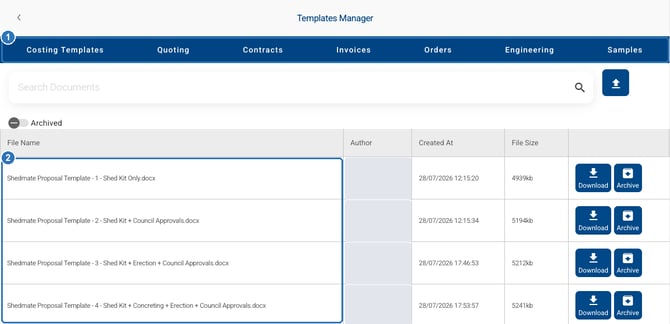
(1) Templates Manager has a tab for each kind of document, such as Quoting, Contracts and Orders. (2) Quote templates are Word documents. Author names are hidden in this example.
Shed Presets
A Shed Preset is a saved shed design used as a starting point. It can give your team and website visitors a familiar shed type, size and colours to begin with.
In the Shed Designer, choose More, then New Shed to browse the library with Search Presets. Save your current shed first if you want to keep it. After loading a preset, check the dimensions and options for the customer, then quote it using the intended pricing database.
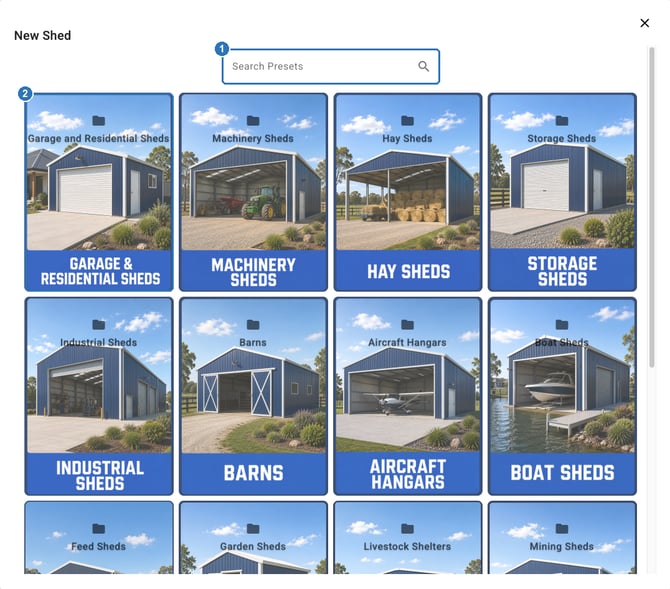
(1) Search Presets, or (2) open a folder to browse the presets.
Changing the design can change the quantities and price. A preset is a starting design, so still check the resulting quote and documents.
Which one do I need?
| You want to change | Start with |
|---|---|
| Supplier costs, item prices or calculations | Pricing Database in Instant Quoting |
| The logo, wording or layout on a quote or contract | Document templates in Settings > Templates |
| The shed design your team starts from | Shed Presets in More > New Shed |
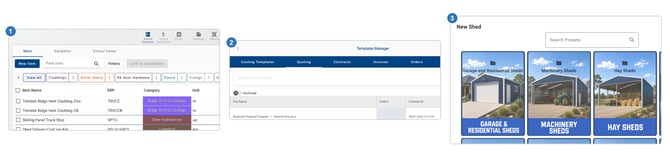
This combines three ShedMate screens, one for each meaning of template: (1) the Pricing Database in Instant Quoting, (2) Templates Manager for document templates, and (3) the New Shed presets in the designer.
The controls available to you depend on your access. If a control is missing, ask your company admin or contact support@shedmate.com.au with what you want to change.
Related articles and videos
- Overview of the Master Template, with the pricing overview video in Loom.
- Shed Presets, with the Shed Presets video.
Some video screen labels may differ. Use the current menu names in this article when following along.