
Want your quote to show the customer's name, the roof colour or a 10% deposit? Each one needs its exact name, written between double curly brackets in your Word template, for example {{Shed.RoofColour}}. Get the name right and the value prints. Get one letter wrong and the field prints blank, with nothing to tell you why.
Every one of those names is in your Cheat Sheet, the list ShedMate generates of every value on a shed. The catch is its size: a Cheat Sheet can run to tens of thousands of lines. This article shows you how to find the line you want in seconds, and gives you a free workbook that does the looking for you.
We have put this together from our experience and from customer feedback, as a starting point to make the Cheat Sheet easier to work with.
What you will need
| Download | What it is |
|---|---|
| Cheat Sheet Explorer (Excel) | Paste your Cheat Sheet in, copy merge tokens out. No macros, no add-ins, and nothing you paste is sent anywhere. |
| Find it fast in the Cheat Sheet (PDF, 3 pages) | A printable map of the Cheat Sheet, with a dozen searches that cover most quote fields. |
| The Cheat Sheet Explorer (PDF, 2 pages) | A printable walkthrough of the workbook, to keep beside you the first time. |
Step 1: Generate a Cheat Sheet from a shed with everything on it
- Open a draft that has every option you sell on it: each door, window and skylight type, and every extra. If you do not have one, build a test shed for the purpose.
- In Instant Quoting, go to Reports and Generate Cheat Sheet.
The Cheat Sheet only lists what is on that one shed. If the shed has no PA doors, there are no PA door lines to find. Keep the Cheat Sheet from your test shed as your reference, and every search finds something.
Step 2: Paste it into the Explorer
Two minutes, and you only do it once
- Open the Cheat Sheet CSV, select everything and copy.
- Open the Explorer and go to the Paste export here tab.
- Click cell A2 and paste. That replaces the two example rows.
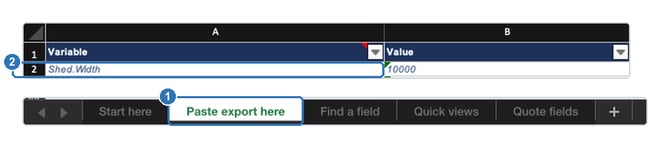
This combines two parts of the same Excel window: (1) the Paste export here tab at the bottom of the workbook, and (2) cell A2, where you paste your Cheat Sheet over the example rows.
Everything else in the workbook reads from that one tab. When your shed or your pricing changes, generate a fresh Cheat Sheet and paste it over the top.
Step 3: Find the field you want
The workbook has three tabs you will use.
| Tab | Use it when | What you get |
|---|---|---|
| Quote fields | You want the usual things: customer, site, prices, sizes, colours, steel sizes | Around 80 fields already written out, each with its merge token and the value it holds on your shed |
| Find a field | You want something specific | The first 20 matches for anything you type, each with its token ready to copy |
| Quick views | You want every match, not just the first 20 | The searches worth knowing, and how to filter the full list |
Search by the value you can already see
This is the fastest way in. On Find a field, set Search in to Values and type something you can see in the designer. Searching a roof colour of Dune brings back Shed.RoofColour, with its token beside it. You never have to guess what a field is called.
Reading the results
Variable name is what ShedMate calls the field. Value on your shed is what it holds right now, which is how you confirm you have the right line. Merge token is the part you copy.
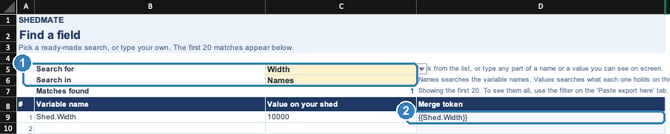
On Find a field, (1) type part of a name in Search for and choose Names or Values in Search in. (2) Copy the token from the Merge token column. This example uses the workbook's own sample row.
Step 4: Put it on your quote
- Copy the cell in the Merge token column. Do not retype it. Names are case-sensitive, so
{{shed.width}}prints nothing where{{Shed.Width}}prints the width. - Paste it into your Word template where you want the value to appear. Text around a token prints as you typed it, so
{{Shed.Width}} mmprints6000 mm. - Upload the template in Templates Manager, on the Quoting tab.
- Reload your draft. The template list is remembered, so a new upload does not appear until you reload.
- Go to Reports, then Documents, pick your template and Generate Documents. Check the field filled in.
Six things worth putting on your quote
Each of these is on the Quote fields tab, so you can copy it straight out of the workbook.
| To show | Use | Why it helps |
|---|---|---|
| Who prepared the quote | {{QuotingModel.Summary.Responsible}} |
One template works for every salesperson, with no name to change per rep. |
| A payment schedule | {{QuotingModel.Summary.Total10}} |
10% of the total, worked out for you. Total20 to Total90 work the same way, plus Total05 for 5%. Any other percentage needs a variable. |
| When the quote expires | {{QuotingModel.Summary.ExpiryDate.AsDayMonth}} |
Taken from your account's expiry setting, so nobody types it. |
| The building in one line | {{ShedResult.ShedDescription}} |
Width, length, height and wall cladding in a single line. |
| A price group's subtotal | {{QuotingModel.Groups.Delivery.Total}} |
Delivery is an example. Your group names are your own: search QuotingModel.Groups. to find them. |
| Your customer's details | {{JobModel.ClientSnapShot.FirstName}} and the lines beside it |
Name, phone, email and postal address come straight from the client record. |
Two habits that keep a quote reading cleanly
A [0] in a name means the first item. Swap [0]. for .*. to list all of them.
List every roller door, not just the first
{{BOMSubcategories.RollerDoors.*.FullDescriptionMeasurement}}
For something that is not on every shed, add words after a pipe. They print only when there is nothing to show, so a shed without skylights reads "Nil" instead of leaving a gap.
Words to show when the item is not on the shed
{{BOMSubcategories.Skylights.*.FullDescriptionLengthMM | "Nil"}}
Never put a fallback on a price. A fallback also prints when the name is wrong. On a price line, that puts your fallback words where the number should be, and the quote still looks finished.
Prices print as plain numbers, for example 41546.35, with no dollar sign and no thousands separators. Type the $ into your template yourself.
No workbook to hand? Search the Cheat Sheet directly
Open the Cheat Sheet in Excel, Google Sheets or Numbers. Column A is the name of each value and column B is what it holds on this shed. The sections always run in the same order, top to bottom:
| Section starts with | What is in it | Useful for quotes? |
|---|---|---|
Shed. |
Your design settings: sizes, pitch, colours, member sizes | Yes |
ShedResult. |
Every generated part. This is most of the file | Rarely. If a search lands here, you have gone too deep |
JobModel. |
Your customer and the site | Yes |
CompanyProfile. |
Your own business details | Yes |
UserVariables. |
The variables your account has created | Yes |
BOMSubcategories. |
Bill of materials by subcategory: roller doors, windows, skylights | Yes |
BOMCategories. |
Bill of materials by category | Sometimes |
QuotingModel. |
Quote number, dates, price groups and totals. Always last | Yes |
Search (Ctrl + F, or Cmd + F on a Mac) for a section name, or for a value you can see. The printable guide Find it fast in the Cheat Sheet has a dozen ready-made searches.
When a field shows something unexpected
| What you see | What it means | What to do |
|---|---|---|
| A blank on the generated quote | The name has a typo or a wrong capital, or the field is empty on this job | Copy the token from the Explorer again rather than fixing it by hand |
| Your fallback words where a value should be | The value is empty, or the name is wrong | Check the name against your Cheat Sheet |
not in this export in the Explorer |
That name is not in the Cheat Sheet you pasted | The shed does not have that item, or your account calls it something else. Search for it on Find a field |
nothing entered on this quote or (blank) |
The field exists but is empty, for example Inclusions you have not typed yet | Nothing to fix. It prints once you fill it in |
| Everything in the Explorer is empty | Nothing has been pasted yet | Paste your Cheat Sheet at cell A2 on Paste export here |
| A price with no dollar sign | Prices print as plain numbers | Type the $ into your template |
| Your new template is not in the list | The list is remembered from before the upload | Reload the draft |
Good to know
- Use Excel for the Explorer workbook. If you use Google Sheets or Numbers, search the Cheat Sheet CSV directly as described above.
- It reads the first 60,000 rows you paste. If your Cheat Sheet is longer than that, let us know.
- The Quote fields tab is a starting point: the fields most quotes use. A few, such as floor area, come from your own account's variables, so confirm they are on yours.
Need a hand?
If a value you need is not anywhere in your Cheat Sheet, email support@shedmate.com.au with the Cheat Sheet and a note of what you want to show on the quote. We will tell you whether it can be reached another way, and we are happy to go through your template with you on a short call.