
Use a public variable with Restrict Options to choose from an agreed list for a job. This suits values such as a delivery band, erection rate or discount. The variable must also be connected to the pricing calculation that uses it.
Set up the choices in your pricing database
The person who maintains your pricing database should agree on the allowed values and a sensible default before adding the variable.
- Open a draft or job in Instant Quoting and go to Pricing Database > Variables.
- Find the existing variable before creating another one. Check its name, description and the calculation that uses it.
- Check that the variable is Public if it needs to appear in the sales quoting screen.
- Use Restrict Options to define its permitted choices. For an existing restricted variable, check Edit Options and the default selection.
- Connect the variable to the appropriate pricing calculation, then check the result on a test quote.
Public and formula are separate settings. A value can be visible to the salesperson and also use a formula. Turning on Public alone does not create the list or connect it to a price.
Match the stored value to the calculation
Use the value your calculation expects. For example, a calculation that multiplies a subtotal by a decimal rate needs 0.30 for 30%, 0.35 for 35%, or 0.40 for 40%. These are examples only; use your own approved rates.
A displayed label such as 30% is not automatically the same as the number 0.30. Labels can make a list easier to read, but check what each option returns. If a rule compares text, keep its spelling, capitalisation and spaces exactly the same.
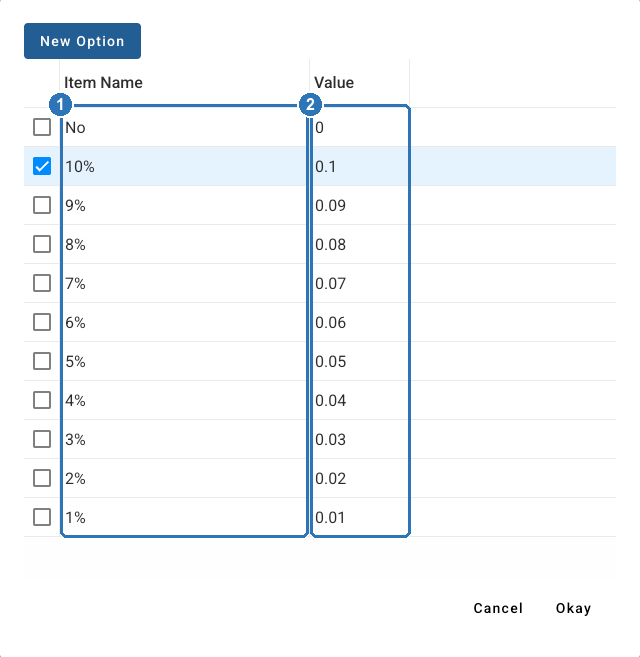
In Edit Options, (1) Item Name is the label the salesperson sees and (2) Value is the number the calculation uses. Here 10% stores 0.1.
Choose the value on a job
- Open the shed in Edit Shed, then open Quoting > Variables.
- Find the public variable you need and click its current value.
- Choose an approved option and confirm it with Okay. Use Cancel to leave the original choice in place.
- Review the affected price and quote total before using Save Quoting to keep an intended change.
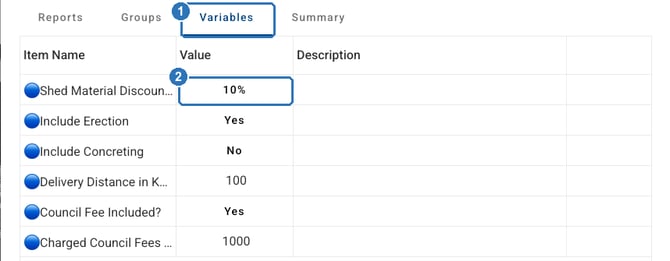
(1) Open Variables in the Quoting window. (2) Click a variable's current value, such as the discount, to see its approved choices.
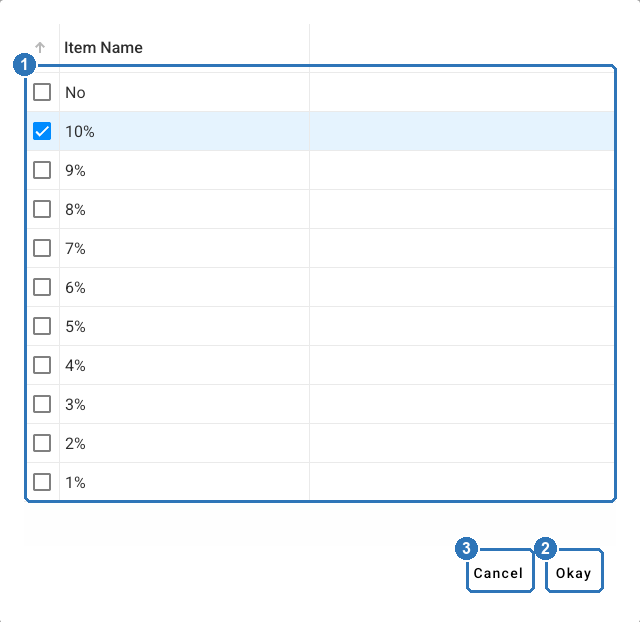
(1) Choose an approved option. (2) Okay confirms it. (3) Cancel keeps the original choice. Your company’s configured choices may differ.
The choices and names depend on your pricing setup. If you see an unrestricted number field instead of a list, ask the person who maintains that setup to check the variable's options. Do not substitute a different rate simply to complete the quote.
Keep job changes separate from shared setup
Use Save Quoting for an intended change to the job's quote. Save Database creates a new version of the shared pricing setup. Treat changes to the approved list or its formula as database maintenance, rather than a routine sales choice.
Existing jobs keep their own loaded database version. A revised list in a newer database will not automatically appear in every older quote. Check the job's database version before assuming an option is missing.
Check the result before sending a quote
After setting up or changing a list, check its default and each allowed choice on a test quote. Confirm the affected line, total and customer document show the intended result. Save and reopen the test quote to check the value was retained.
A restricted list controls the options for that field. Keep your normal quote approval and user access arrangements in place. If a choice is missing or the total does not change as expected, give support the variable name, job reference, database version and a screenshot of the choices.
Related delivery example
The existing public-variable delivery guide demonstrates a delivery-area list connected to a price calculation. Its original delivery setup video is retained as a related example; some screen labels differ from the current app.