
Check where the profile is missing first. A profile available in the Shed Designer and a matching item in your pricing database are separate parts of the setup. Adding a price does not make a profile available in the designer, and seeing it in the model does not confirm that it is priced correctly.
ShedMate supports structural profiles such as PFCs, but the options available to you depend on your company’s setup and the member you are editing.
Check where it is missing
| What you see | What to check |
|---|---|
| The profile is not in the designer’s list | The selected member and the profiles available for your company |
| The profile is available in the designer but not in the price list | The loaded pricing database, filters and matching price item |
| A price item exists, but the shed is not being priced as expected | Its linked calculation, matching rules, unit and resulting quantity |
Check the designer’s profile list
- Open the job and click Edit Shed.
- Click Structure and find Structural Frames.
- Open the relevant member selector, such as Columns, Rafters or Purlins, and check the available options.
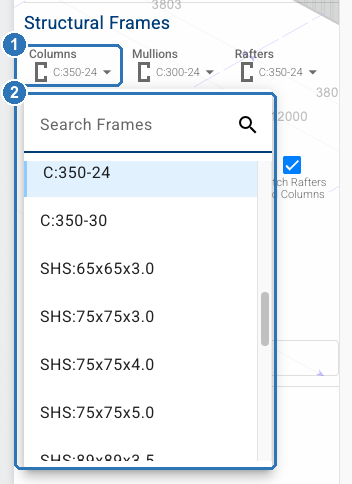
(1) Choose the member, such as Columns. (2) The list shows the profiles available for that member.
Check the member you actually need. A profile available for one use is not automatically available for every other member.
If the required profile or size is missing, contact support@shedmate.com.au to check your company’s available range. Include the exact sizes and supplier specifications. Do not substitute a different section just because it appears in the list; member sizes must suit the project’s engineering.
Check the pricing database separately
Open Instant Quoting, then Pricing Database. Check the database name and loaded version in the footer, choose View All, and clear any search or filters that may be hiding the item.
Use Find Item to search for the profile’s item name or ERP code. Your price file may use a different description from the designer. Compare the actual profile, grade and size rather than relying on a similar name.
If an item is present, check its Category, Unit, Price and Linked to Calcs. A structural-frame item needs an appropriate matching calculation. The calculation’s rules determine which model members it counts.
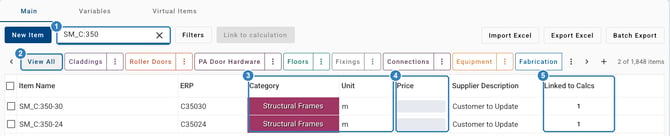
(1) Search with Find Item. (2) Start from View All. Then check (3) Category and Unit, (4) Price and (5) Linked to Calcs. Prices are hidden in this example.
If the item or calculation is missing, ask your company’s pricing admin to add or correct the setup. Do not add a duplicate price row before checking the existing items and calculations.
Send support the details needed to check it
Email support@shedmate.com.au with:
- Your company name and the job number.
- The profile family, exact sizes and grades required, plus the supplier’s technical specifications.
- Whether it is missing from the designer, pricing list or calculated quote.
- The member you are editing, and a screenshot showing the list or message.
- The pricing database name and loaded version, if the issue is in Instant Quoting.
Support can check the available options and advise on the setup needed. Enabling a profile and adding matching pricing are separate checks.
Before quoting or ordering
Review the affected members, quantities, unit costs and quote result. An item appearing in the price list does not prove that it has been counted, and a zero unquantified count does not prove that the whole quote is complete.
Keep member selection, engineering confirmation and pricing checks separate. Do not change an engineered section simply to clear a pricing warning. If the job is already certified, ask support or your engineer before changing the design.
Related guides and videos
The existing guides retain their original videos. Some screen labels have changed; use the current names above.
- Understanding the Structural Frames category, including the PFC section in Loom.
- My Company Rules, including the original company-rules video.