
Short answer: a bracket preset is the set of rules ShedMate follows when it converts your shed in the Bracket System. For every place two members meet, it says how each member is cut, where the holes go and which bolt is used. You can keep your own copy and change it to suit your own brackets.
The safe way to change your preset
- Make a test copy of it
- Change the rule in the test copy, then save and reload it
- Convert a copy of a job with the test copy and check it
- Copy the change into your live preset, then archive the test copy
Where it lives
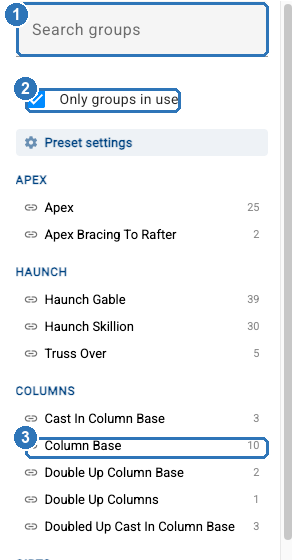
Open any job, click Brackets, then Manage Presets at the top right. On the left is the list of groups (1). Each group is one kind of connection, for example Column Base (3) or Truss Over, and the number beside it is how many rules it holds. Search groups filters the list. Only groups in use (2) hides groups that have no rules.
What a rule looks like
Each group holds one or more rules, called entries. An entry says which steel it is for (1), how that member is cut and where it is measured from (2), the holes to punch (3), and for a column base, the anchor bolts into the slab (4).
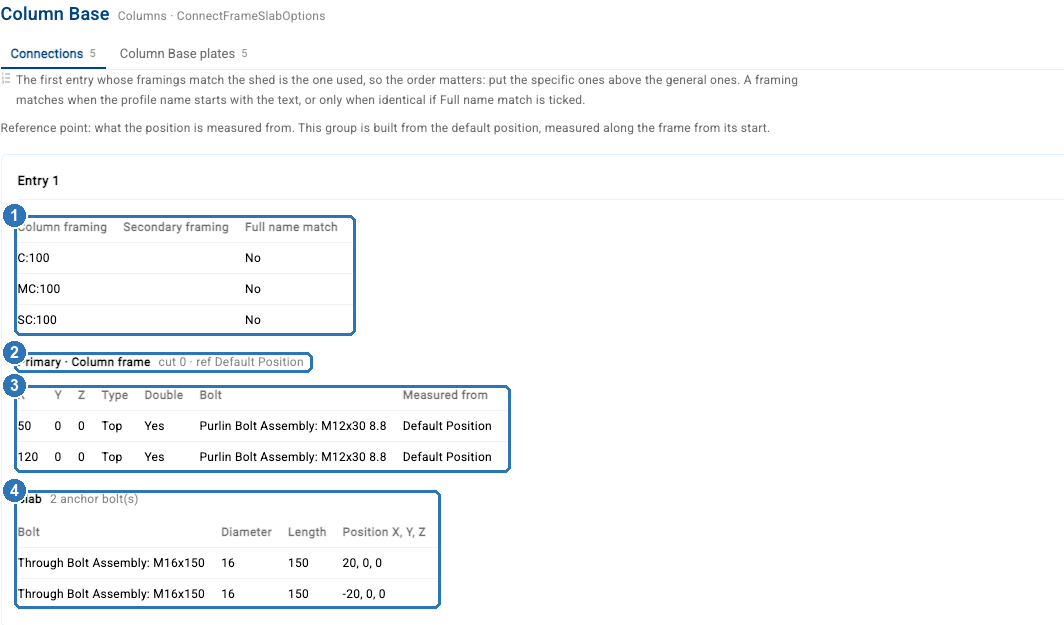
The first entry that matches is the one used. ShedMate reads the entries from the top. A framing matches when the profile name starts with what you typed, so C:200 covers every C200 gauge. Tick Full name match to match one exact profile only. Keep specific entries above general ones.
What you can change
| You can set | Where |
|---|---|
| Where each hole is, along the member | X on each punch row |
| Which face is punched, and single or paired holes | Type and Double |
| The bolt for each hole | Bolt |
| How much a member is cut, and where it's measured from | cut and from on each frame |
| Which profiles a rule covers | Column framing, Rafter framing and the other framing lists |
| Which sheds the preset will convert: roof types, pitches, profiles, doors, awning width | Preset settings |
What a preset doesn't change: where members sit in the design (girt heights, purlin spacing), or the shape of ShedMate's own brackets. Those are set in the designer.
Things to know before you start
- Jobs keep their brackets until they're converted again. Changing your preset doesn't touch jobs that are already converted.
- Every save is a new version. Nothing is overwritten, and an earlier version can be restored.
- Your team sees a copy straight away. A test copy is offered at Convert Shed as soon as it's made, so give it a name that says TEST.
- A preset with the blue Shedmate badge is maintained by us. You can convert with it but not change it. To make your own version, duplicate it.
- Can't click Edit? Hover over it. The message says whether editing presets is turned on for your company, or whether your own access allows it. If you'd like it turned on, email us and we'll talk it through.
- Use a wide window. On a narrow one, below about 1100 pixels, the rules show as read-only summaries.
Next in this series
How do I make a test copy of my bracket preset? · How do I read a bracket rule? · How do I change where holes are punched? · How do I change how a member is cut? · How do I save, check and undo a preset change? · How do I test a preset change before I use it on real jobs?
Converting a shed is covered in How do I convert my shed in the Bracket System?
Need a hand with your own brackets? Email support@shedmate.com.au with a marked-up drawing and we'll work through it with you.