
Check the engineering status at the bottom of the Shed Designer. If it says Engineering needs attention, click Engineering and read the message. Check that the site and building details are correct. If they are and no suitable computation is available, keep your design and use Report Missing Computation. It is free, and ShedMate engineering typically reviews reports within 24 to 48 hours. You can still send a quote, but the engineering is not certified.
When it says Engineering needs attention
- Click Engineering and read the message
- Check the site and building details are correct; ask support if you are unsure
- Keep the shed the way your customer wants it, then click Save Shed
- If a computation is missing, click Report Missing Computation once

When engineering starts
Preliminary engineering starts at the beginning of a quote. The first time you open a shed, a window called Activating Preliminary Engineering gathers the wind and engineering information for the site, and asks whether to start with Auto Apply Engineering on. With it on, ShedMate runs the engineering checks and can change members in your shed automatically. If you already have a final version of the shed, turn it off. You can change it later with Auto Apply Engineering? in the engineering panel.
What each status means
| You see | What it means | What to do |
|---|---|---|
| Engineering Calculated | Your shed matches a computation in the library. This is not certification | Continue quoting; request certification separately when needed |
| Computation name in green | Your shed matches a computation in the engineering library | Continue quoting |
| Computation name in blue | A computation is applied, and some members can be optimised | You can click Optimize Engineering, which may reduce costs. Ask us first if the job is certified or your customer has seen the drawings |
| Engineering needs attention | No suitable computation has been applied. The panel explains what needs attention | Read the message and check the site and building details. If they are correct, report the missing computation (below) |
| Engineering needs updating | Engineering needs to run again for the shed as it is now | Click Engineering, then Update Engineering |
| Engineering failed | Engineering could not run, or some members need to be addressed | Click Engineering and read the message. See "Before you click Fix Engineering" below |
| Site Specific Engineering Requested or Engineering Certification Requested | A request is with ShedMate engineering | Nothing. Don't send it again |
| Engineering Certified | The job is certified | Ask us before you change the shed |
Can I send the quote while it says Engineering needs attention? Yes. Tell your customer that member sizes and the price are subject to engineering confirmation. This status does not mean the plans are certified or ready for construction.
Report a missing computation
Read the message in Engineering first. It may refer to your building class or site information. Correct a genuine input mistake, or ask support if you are unsure. Do not choose a different building class or wind region just to make a computation appear.
| Step | |
|---|---|
| 1 | Keep the shed the way your customer wants it. If you changed something to make the warning go away, click Undo (1) to put it back |
| 2 | Click Save Shed (2) |
| 3 | Click Engineering (3) on the toolbar. The engineering panel opens |
| 4 | Scroll to the bottom of the panel and click Report Missing Computation (1) |
| 5 | Send it once. Each click sends a new report |

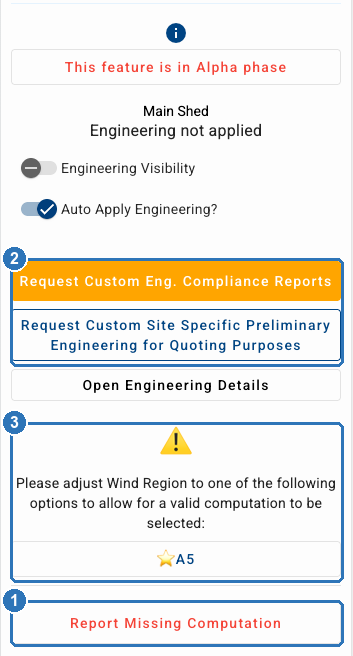
When it is sent, ShedMate shows "Thank you for notifying us." ShedMate engineering reviews your report, typically within 24 to 48 hours.
Don't change the wind region to clear the warning. The panel may suggest other wind regions (3) that have a computation. Your wind region comes from the site, so changing it to clear the warning makes the engineering wrong for that site. Report the missing computation instead.
Free or paid
Report Missing Computation is free. The request buttons above it (2) are paid. Use them only when your customer has agreed to the cost.
- Request Eng. Compliance Reports asks ShedMate to certify the job. It shows as Request Custom Eng. Compliance Reports when the shed needs custom engineering. The job needs a site plan first, and the app asks you to confirm the site plan is right.
- Request Custom Site Specific Preliminary Engineering for Quoting Purposes is a preliminary package for custom projects. You don't need it for an ordinary quote.
What you get when the job is certified
While the request is with ShedMate engineering, the status line reads Engineering Certification Requested. When the job is certified it reads Engineering Certified. You receive a Form 15 certificate signed by ShedMate's engineer of record, and the engineering package (the certified plans for construction) is emailed to you to download.
Before you click Fix Engineering
When engineering finds members that need to be addressed, the panel offers Fix Engineering. It changes the members in your shed automatically. If the job is already certified, or your customer has already seen the drawings, ask us before you click it.
The panel can also offer Optimize Engineering. It changes members that can be optimised, which may reduce costs. The same care applies.
Don't see Report Missing Computation?
Your company may not have engineering switched on. On a narrow screen, look in More for Engineering. If you still can't find it or the report button, send us the job number and a screenshot.
Stuck? Email support@shedmate.com.au with the job number.