---
title: Tracking 3D Shed Designer Enquiries as Conversions in Google Ads and Meta
description: See which ads are actually producing shed enquiries. Redirect your 3D Online Designer to a thank-you page on your own website, so Google and Meta can count every enquiry as a conversion — with no code inside the designer.
---
[Skip to content](https://help.shedmate.com.au/knowledge/tracking-designer-enquiries-as-conversions-google-ads-meta#main-content)
English
Show submenu for translations

- [Setting up Pricing in Shedmate (course)](https://help.shedmate.com.au/knowledge/introduction-to-shedmate-costing-course)
- [Frequent Asked Questions](https://help.shedmate.com.au/knowledge/frequent-asked-questions)
- [Setting up Shedmate](https://help.shedmate.com.au/knowledge/setting-up-your-enquiry-system-for-marketing-usage-qr-codes)
- [Integrations](https://help.shedmate.com.au/knowledge/trimble-tekla-structures-integration)
Open main navigation
Close main navigation
- [Setting up Pricing in Shedmate (course)](https://help.shedmate.com.au/knowledge/introduction-to-shedmate-costing-course)
- [Frequent Asked Questions](https://help.shedmate.com.au/knowledge/frequent-asked-questions)
- [Setting up Shedmate](https://help.shedmate.com.au/knowledge/setting-up-your-enquiry-system-for-marketing-usage-qr-codes)
- [Integrations](https://help.shedmate.com.au/knowledge/trimble-tekla-structures-integration)
- English
Show submenu for translations
- Contact us
Contact us
How can we help you?
- There are no suggestions because the search field is empty.
1. [Help Center](https://help.shedmate.com.au/knowledge?hsLang=en)
2. [Frequent Asked Questions (FAQ)](https://help.shedmate.com.au/knowledge/frequent-asked-questions-faq?hsLang=en)
# Tracking 3D Shed Designer Enquiries as Conversions in Google Ads and Meta
## See which ads are actually producing shed enquiries. Redirect your 3D Online Designer to a thank-you page on your own website, so Google and Meta can count every enquiry as a conversion — with no code inside the designer.
If you're running Google or Meta ads to your 3D Online Designer, you need to know which ads are producing shed enquiries. **Digital Marketing Conversions** in Shedmate is how you set that up.
If you've already tried adding your tag manager to the designer and found it can't see enquiry submissions — that's expected, and this is the way around it. You won't need any code inside the designer.
**Why your tag manager can't see the designer**
When the designer is embedded on your website, it runs in a frame served from Shedmate's domain. Your Google Tag Manager container and Meta Pixel live on *your* domain, and browsers deliberately stop scripts on one domain from reading what happens inside another. That's a security boundary, not a setting — no amount of tag configuration will get through it.
So Shedmate doesn't try to. Instead, **it sends the customer to you.**
When someone submits an enquiry, Shedmate redirects them to a **thank-you page on your own website** — where your tags already are. That page loading *is* the conversion. Google and Meta see it, credit it to the campaign that brought the visitor in, and your reporting closes the loop.
The only way a visitor can land on that page is by submitting an enquiry. That's what makes it a reliable conversion signal.
**Watch the walkthrough**
*Artur walks through the whole setup in five minutes, including how it connects to Google Tag Manager and Meta*
If you work with a marketing agency or consultant, send them this article and the video. It'll take them about two minutes to recognise the pattern — it's a standard thank-you-page conversion setup.
### **Before you start**
- A **thank-you page on your own website** that you can send people to. This can be your homepage to begin with, but a proper thank-you page performs better and lets you track campaigns separately.
- **Google Tag Manager and/or Meta Pixel installed on that page.** This is the part your marketing person or agency handles — Shedmate delivers the visitor to the page; your tags record the conversion.
- Access to **Settings** in Shedmate.
> **We build the plumbing, not the campaigns.** Shedmate creates the pages and the trackable links so you can use your designer in a smarter way. Configuring the conversion events inside Google and Meta is your marketing team's job — and they'll already know how.
**Step 1 —** Open Digital Marketing Conversions
Go to **Settings → Digital Marketing Conversions**.
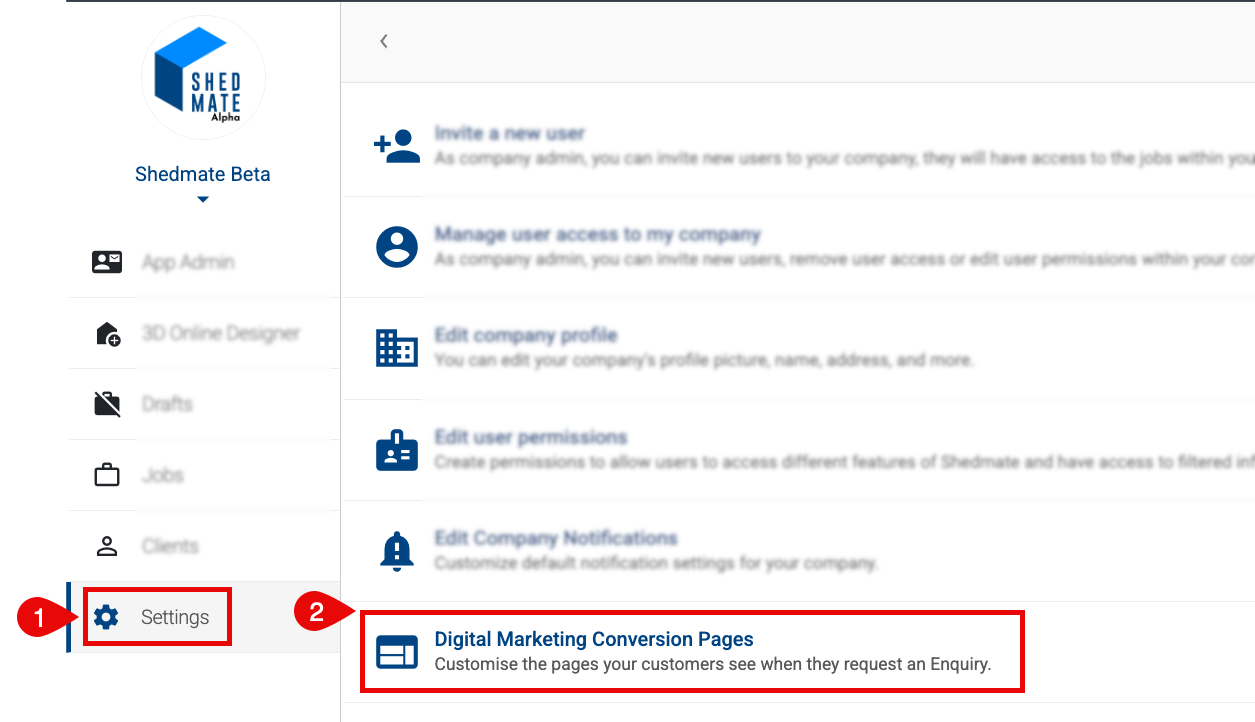
**Step 2** — Set the page the customer is redirected to
Enter the URL you want prospects sent to after they submit an enquiry — for example your thank-you page, a campaign landing page, or your homepage.
**Step 3** — Add a unique identifier
Give the entry a short identifier that tells you where the lead came from. Artur's example in the video is `FBSARAM` — a **F**ace**b**ook campaign, **S**outh **A**ustralia, **r**e**ma**rketing.
Use whatever shorthand your team will recognise later. You'll be reading these in your reports.
**Step 4 — Save**
> ⚠️ **Save before you copy the link.** The enquiry URL isn't generated until the entry is saved. If you copy straight away you'll get the old link without your identifier on it. (Artur does exactly this in the video — it's the easiest mistake to make here.)
**Step 5** — Copy the enquiry URL
Click **Copy enquiry URL**. You'll get your designer's link with the unique identifier appended.
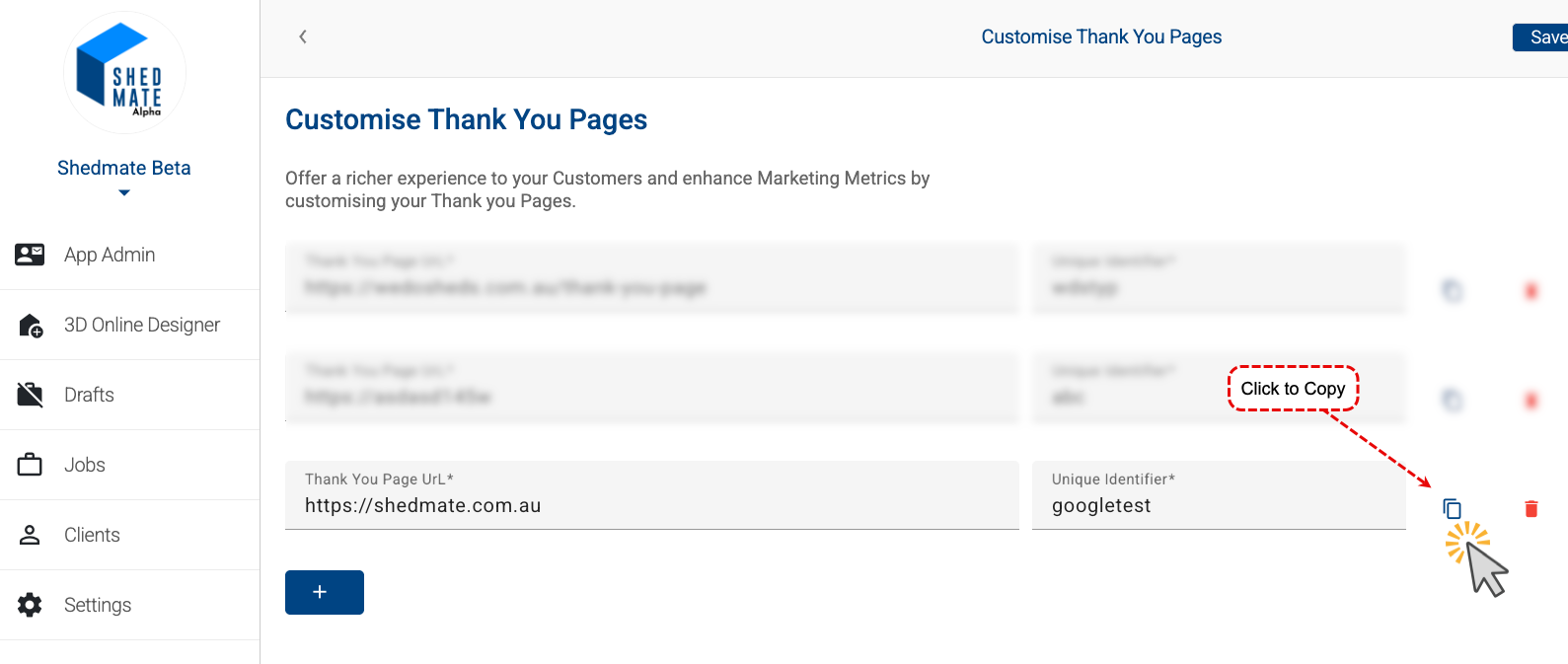
**Step 6** — Use that link in the campaign
Give that specific URL to the campaign it belongs to. Each campaign gets its own link, its own identifier, and its own thank-you page — which is what lets you tell them apart.
**Verify it worked**
1. Open your enquiry URL and submit a test enquiry.
2. You should see the confirmation, then be redirected to the page you nominated.
3. Check the enquiry arrived in Shedmate.
4. Ask your marketing person to confirm the conversion registered in Google Tag Manager / Meta Events Manager. Google Tag Assistant and the Meta Pixel Helper browser extension both show this live.
### **Running multiple campaigns**
You can create as many as you like, and point different campaigns at different pages:
| Campaign | Thank-you page |
| --- | --- |
| Facebook leads | `/thank-you-facebook` |
| Google leads | `/thank-you-google` |
| Organic traffic | `/thank-you-organic` |
Separate pages make the split obvious in your reporting without any extra configuration. If your agency prefers a single thank-you page and splitting by UTM parameters instead, that works too — it's their call.
Your default designer link has no identifier and doesn't redirect anywhere. That's fine for a link on your website, but it won't tell you anything about campaign performance.
### **Common issues**
**The enquiry URL doesn't have my identifier on it** You copied before saving. Save the entry, reopen **Settings → Digital Marketing Conversions**, and copy again.
**Conversions are firing, but Google and Meta record them as "direct" and won't credit my campaign** Your ads are probably linking straight to the designer URL. When someone clicks an ad, Google and Meta attach a click ID to the link — and that ID has to touch **your** domain for the conversion to be attributed. If the ad goes directly to a Shedmate designer link, the ID only ever exists on our domain, so the conversion is recorded but not credited.
**Point your ads at a page on your own website with the designer embedded**, rather than at the designer link itself. The conversion will then attribute correctly.
**Nothing is tracked at all** Check that Google Tag Manager or the Meta Pixel is actually installed on the thank-you page — not just on your homepage. The tag has to be on the page the visitor is redirected *to*.
**I'm not sure my tags are set up correctly** That part sits with your marketing team or agency rather than with us. Send them this article and Artur's video; it's a standard setup and they'll recognise it immediately.
#### **Still need help?**
Email **[support@shedmate.com.au](mailto:support@shedmate.com.au)** and we'll help you get the Shedmate side configured. For the Google and Meta side, loop in your marketing agency or consultant — this setup is very effective once those pixels are in place.
### **Related articles**
- [Setting up your Enquiry System for marketing usage + QR Codes](https://help.shedmate.com.au/knowledge/setting-up-your-enquiry-system-for-marketing-usage-qr-codes?hsLang=en)
- [What is Shedmate and how does it work? — 3D Online Designer](https://help.shedmate.com.au/knowledge/how-does-shedmate-work?hsLang=en)
- [Introduction to Shedmate (How does it work)](https://help.shedmate.com.au/knowledge/introduction-to-shedmate-how-does-it-work?hsLang=en#main-content)
- [Introduction and useful information](https://help.shedmate.com.au/knowledge/introduction-to-shedmate-how-does-it-work?hsLang=en#introduction-and-useful-information)
- [Workflow for Cold Formed x Structural Steel](https://help.shedmate.com.au/knowledge/introduction-to-shedmate-how-does-it-work?hsLang=en#workflow-for-cold-formed-x-structural-steel)
- [Frequent Asked Questions (FAQ)](https://help.shedmate.com.au/knowledge/frequent-asked-questions-faq?hsLang=en)
- [Release Notes](https://help.shedmate.com.au/knowledge/release-notes?hsLang=en#main-content)
- [2025](https://help.shedmate.com.au/knowledge/release-notes?hsLang=en#2025)
- [2024](https://help.shedmate.com.au/knowledge/release-notes?hsLang=en#2024)
- [2026](https://help.shedmate.com.au/knowledge/release-notes?hsLang=en#2026)
- [Setting up Shedmate](https://help.shedmate.com.au/knowledge/setting-up-shedmate?hsLang=en#main-content)
- [Getting Started](https://help.shedmate.com.au/knowledge/setting-up-shedmate?hsLang=en#getting-started)
- [Setting up Shedmate Costing (COURSE)](https://help.shedmate.com.au/knowledge/setting-up-shedmate-costing-course?hsLang=en#main-content)
- [Introduction to Cost Engineering & Shedmate](https://help.shedmate.com.au/knowledge/setting-up-shedmate-costing-course?hsLang=en#introduction-to-cost-engineering-shedmate)
- [Starting from Scratch - A necessary learning practice](https://help.shedmate.com.au/knowledge/setting-up-shedmate-costing-course?hsLang=en#starting-from-scratch-a-necessary-learning-practice)
- [Fast-Tracking Your Pricing Setup with Pre-Built Templates](https://help.shedmate.com.au/knowledge/setting-up-shedmate-costing-course?hsLang=en#fast-tracking-your-pricing-setup-with-pre-built-templates)
- [Integrations and API](https://help.shedmate.com.au/knowledge/integrations-and-api?hsLang=en)
- [Setting up Pricing in Shedmate (course)](https://help.shedmate.com.au/knowledge/introduction-to-shedmate-costing-course)
- [Frequent Asked Questions](https://help.shedmate.com.au/knowledge/frequent-asked-questions)
- [Setting up Shedmate](https://help.shedmate.com.au/knowledge/setting-up-your-enquiry-system-for-marketing-usage-qr-codes)
- [Integrations](https://help.shedmate.com.au/knowledge/trimble-tekla-structures-integration)
[](http://www.shedmate.com.au)
1 James St, Mount Gambier 5290
South Australia
[mailto:support@shedmate.com.au](mailto:support@shedmate.com.au)
Copyright © 2025, Shedmate