
Short answer: make a copy of a job, convert the copy with your test preset, and check the result in the front view. When it's right, copy the change into your live preset with Copy from... and archive the test copy.
Test on a job copy
- New Job, then Duplicate, and pick a job that has the connection you changed
- Open the copy's Brackets screen and click Convert Shed
- Pick your test preset in Bracket Options and click Run
- Check the connection in the front view
Make a copy of a job
Converting saves the brackets on that job, so test on a copy, never a live job. Click New Job, then Duplicate, and pick a job that uses the members you changed. Check the client, then click Save and Save again. The copy starts out unconverted.
Convert the copy with your test preset
Open the copy and click Brackets, then Convert Shed. In Bracket Options (1), pick your test preset. Click Run (2).
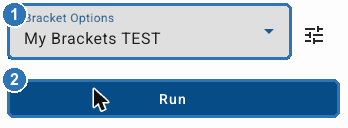
The small icon beside Bracket Options opens Manage Presets, if you want to check the preset first.
The bottom left of the Brackets screen shows which preset and version the shed was converted with. Check it reads your test preset.
If the conversion stops
A preset only converts the sheds it's set up for. If the shed's roof type, roof pitch, rafter position, a profile, a door type or the awning width is outside the preset's Preset settings, the conversion stops and says which limit it hit. Either change the shed, or widen Preset settings (the first item in the Manage Presets list). Widening it means the preset takes sheds it wasn't set up for, so check those connections have rules.
Check the result
Click View at the top right and choose Front. Zoom in with your mouse wheel on the connection you changed. Holes show as black marks; holes through a flange show as short marks on the member's edge (1).
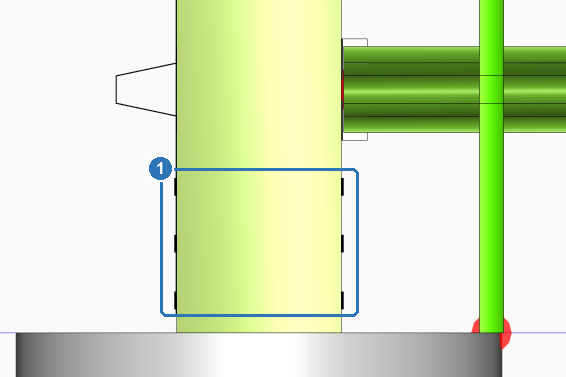
Check both ends of a member, both sides of the shed, and for cut changes, the gap or overlap where the members meet. For a closer look, click Sync Frames, then check the fabrication drawings for that member. The drawings only pick up the new holes after Sync Frames.
Move the change into your live preset
When the test is right, copy the changed entry across with Copy from..., so you don't have to retype it.
| Step | |
|---|---|
| 1 | Pick your live preset in Manage Presets and click Edit, then Copy from... |
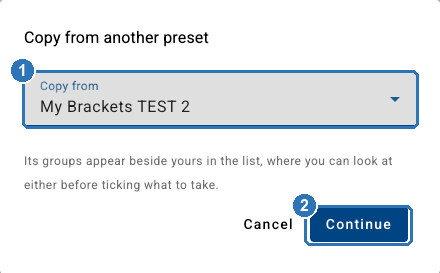
| 2 | Under Copy from, pick your test copy (1) and click Continue (2) |
| Step | |
|---|---|
| 3 | Click the group you changed in the list on the left, then Show theirs at the top right. The screen says whose entries it's showing (1) |
| 4 | Click Replace mine (2) on the entry you changed. Check its numbers (3) first |
| 5 | Click Show mine and check your entry now has the new numbers |
| 6 | Save as new version, reload and read the numbers back |
| 7 | Click Cancel on the blue bar to leave copy mode. Your saved version stays |
| 8 | Pick the test copy and click Archive |
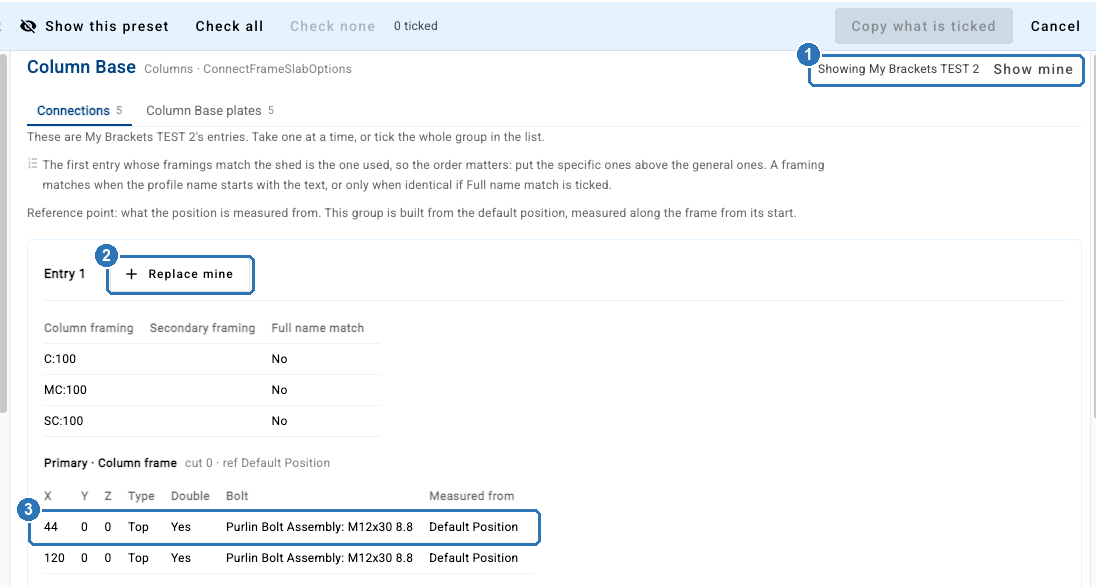
Replace mine swaps your entry for the one with the same framings, and nothing else in your preset changes. After saving, What changed in History names only that group. If you changed an entry's framings, make the change by hand instead.
Jobs keep their brackets until they're converted again. Jobs converted before your change still have the old holes and cuts. Convert a job again only if you want it to pick up the change.
Testing another change? Make a fresh copy of the job each time, so every test starts from an unconverted shed.
Related: How do I convert my shed in the Bracket System? · How do I generate the punching list for my roll former?
Questions? Email support@shedmate.com.au.