
Short answer: they send a converted shed on to your order. Sync Frames sends the frames to the Fabrication module and the order. Sync Stock Items adds everything that is not drawn as a member, such as flashings and fixings. Run both, in that order, every time you convert the shed.
Quick answers
- Which first? Sync Frames, then Sync Stock Items.
- How do I know it worked? Each one shows a message when it is done.
- Do I need to click Save afterwards? No. Both save their own results.
- When do I run them again? After every conversion.
What each one does
Both buttons are on the Bracket System toolbar, after the shed is converted.
| Button | What it does | What you see when it is done |
|---|---|---|
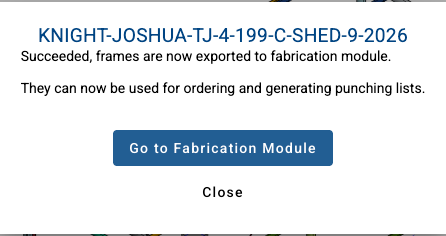
| Sync Frames | Sends the frames to the Fabrication module, where you make the punching list, and to the order | A message: frames are now exported to the fabrication module and can be used for ordering and punching lists. Click Close, or Go to Fabrication Module |
| Sync Stock Items | Adds the items that are not drawn as members, such as flashings and fixings, to the order | A message at the bottom of the screen: Stock Items Saved: You can now go to Orders |

Check the order picked them up
On the job page, click Orders. The top line of the order shows how many rows came from each part of the job: Bracket System, Frame fab, Stock and Virtual. After a conversion and both syncs, each number reflects the new conversion.

If the Orders screen says a job has no saved Bracket System data or no saved stock items, go back to the Bracket System and run the conversion or the missing sync.
When to run them again
Run both syncs again every time you convert the shed:
- after the design changes and you convert again (the toolbar shows Shed Outdated until you do),
- after an engineering revision,
- after you load an earlier shed version and convert it.
Then go to Orders and click Refresh.
Skip Sync Stock Items and the order is missing its stock items. Flashings, fixings and other parts that are not drawn as members only reach the order through this step.
Related
- How do I convert my shed in the Bracket System? covers the conversion step by step.
- How do I generate the punching list for my roll former? starts from Go to Fabrication Module.
- Check your order against the model before you send it covers the order check.
Stuck? Email support@shedmate.com.au with the job number.