
Short answer: a supplier view is a tab on the Orders screen that lists what one supplier provides. Set your views up once, and every job's order splits by supplier. Make a view, choose what it picks up with Filters, choose its columns, then save.
Good to know before you start
- Views only change how the order is shown and exported. They don't change your quote or your prices.
- A package is one set of supplier views, with its own category scope and document settings.
- Start from an existing view where you can: duplicate it rather than building from blank.
Your supplier views
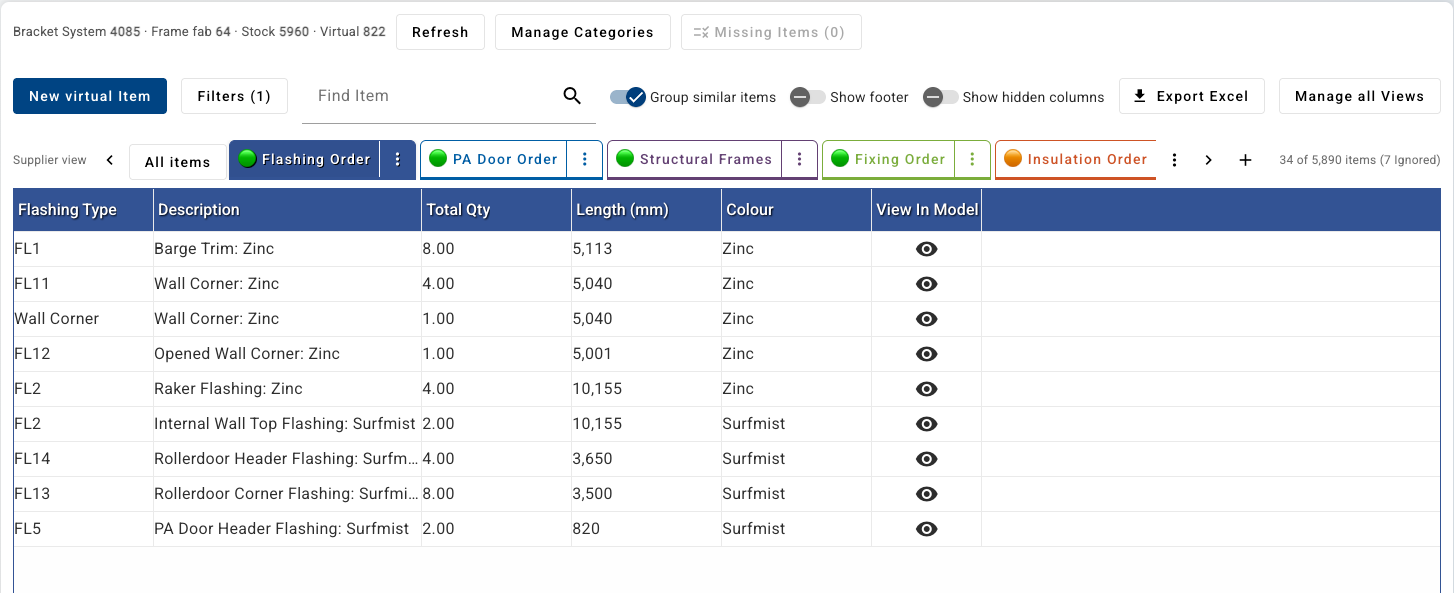
On the job page, click Orders. The tabs under the toolbar are your supplier views, for example Flashing Order, Structural Frames and Roller Door Order. All items shows everything on the order.
Make a new view
| Step | |
|---|---|
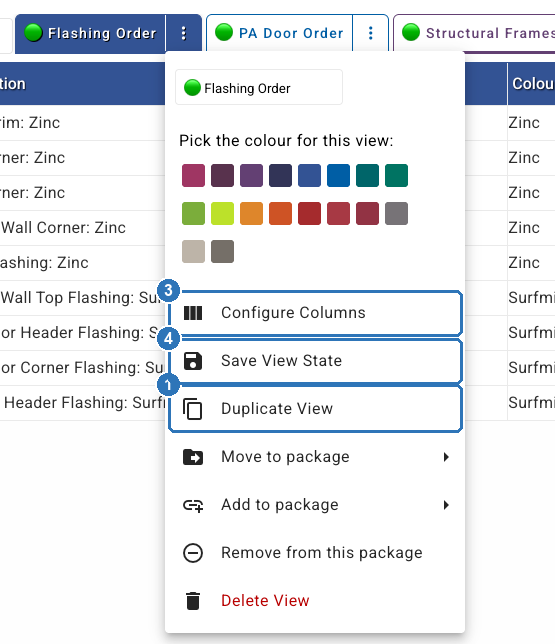
| 1 | On a view you want to copy, click its ⋮ menu, then Duplicate View (1). The copy is added at the end of your tabs, named after the original with "copy" on the end |
| 2 | Set the copy's filters (next section) |
| 3 | Click Configure Columns (3) to choose the columns your supplier needs |
| 4 | Click Save View State (4), then Save Ordering |
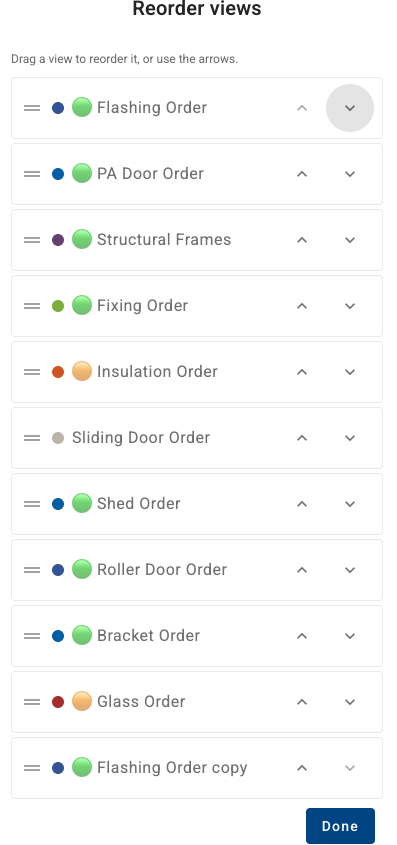
To change the order of the tabs, click the ⋮ after the last tab. Reorder views lets you drag a view or move it with the arrows.
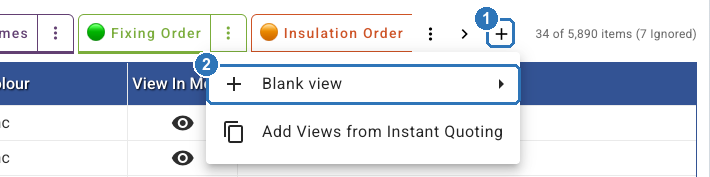
To start from scratch instead, click + (1) at the end of the tabs. Choose Blank view (2), or Add Views from Instant Quoting to copy views you already use for quoting.
Choose what a view picks up
A view picks up items by its filter rules. Each rule reads like a sentence.
| Step | |
|---|---|
| 1 | Open the view and click Filters. Check the rules already there (1) |
| 2 | Click + (2) to add a rule, for example Category equals Flashings. Use Add group for a second set of rules |
| 3 | Click Save & Done (3) |
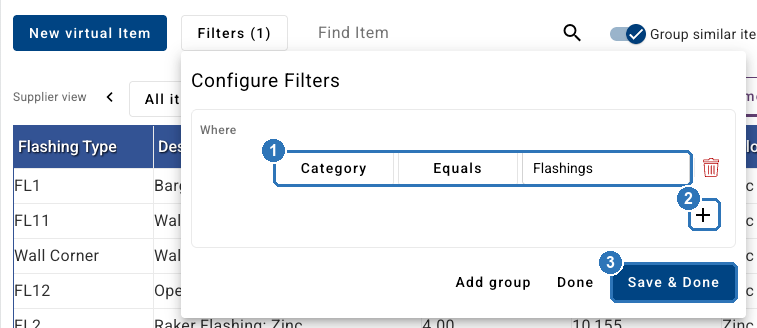
Keep your filters from overlapping. If two views both pick up an item, it appears in both, and exporting both views orders it twice.
Check Missing Items after a change. An item that no view picks up shows in Missing Items on the Orders screen. See Check your order against the model before you send it.
Group views into packages
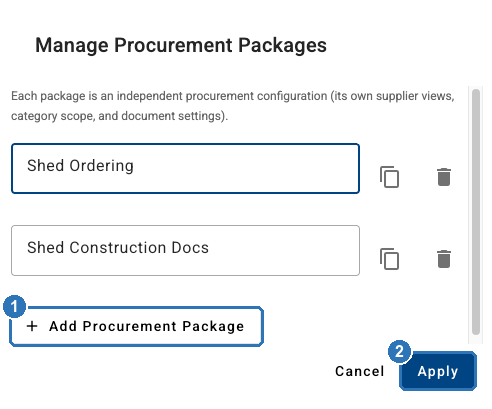
A package is a separate set of supplier views, for example one for materials and one for construction documents. Pick the package at the top of the Orders screen.
- Manage Packages in the toolbar adds, renames or removes packages. Click Add Procurement Package (1), name it, then Apply (2). The icons beside each package duplicate or delete it.
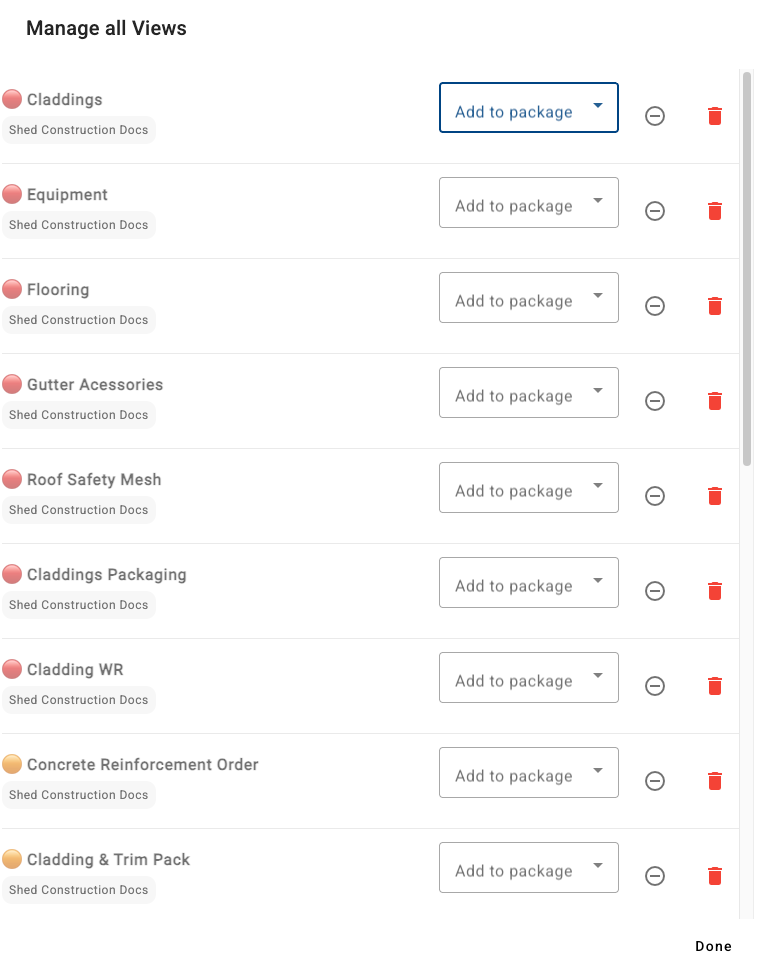
- Manage all Views lists every view, shows which package it belongs to, and lets you add it to another package.
What a package leaves out
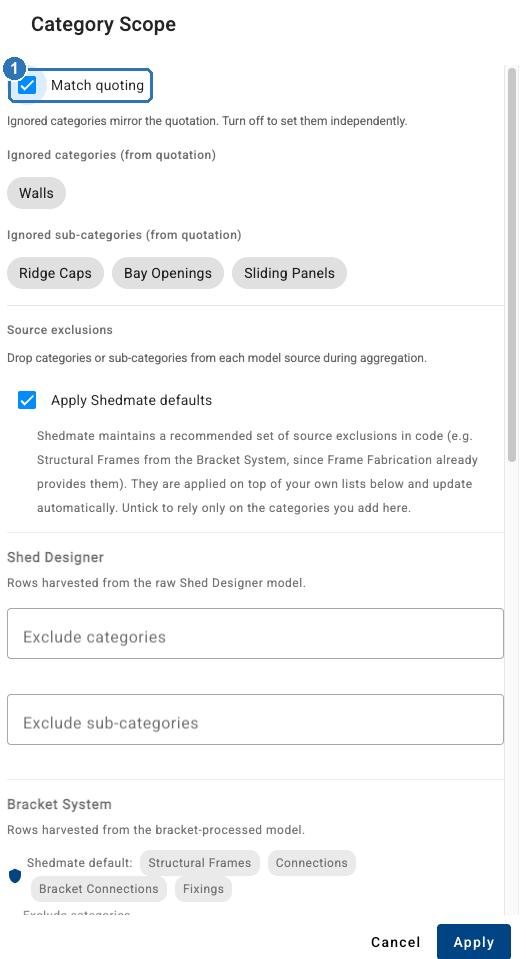
Click Manage Categories to see the package's category scope. With Match quoting ticked (1), the order leaves out the categories and sub-categories your quote ignores. Untick it to set the order's own list.
Related
- Check your order against the model before you send it covers Missing Items and the count check.
- Export a purchase order to send to your supplier covers the export.
Stuck? Email support@shedmate.com.au with the job number.