
Short answer: click Save as new version, then the reload arrow, and read your numbers back. Every save is a new version, so you can always go back to an earlier one from History.
Save and check
- Click Save as new version
- If a warning shows, read it, then click Save anyway or go back
- Click the reload arrow
- Open the group again and check every number you changed
Save
Save as new version (1) lights up once something has changed, and Unsaved changes (2) shows beside it.

A save can show a warning such as entry 3 never reached, an earlier one claims the same framings. That means an entry above it matches the same steel, so the lower one is never used. Check your framings. If the warning is about a group you didn't touch, it was there before your change.
Check it saved
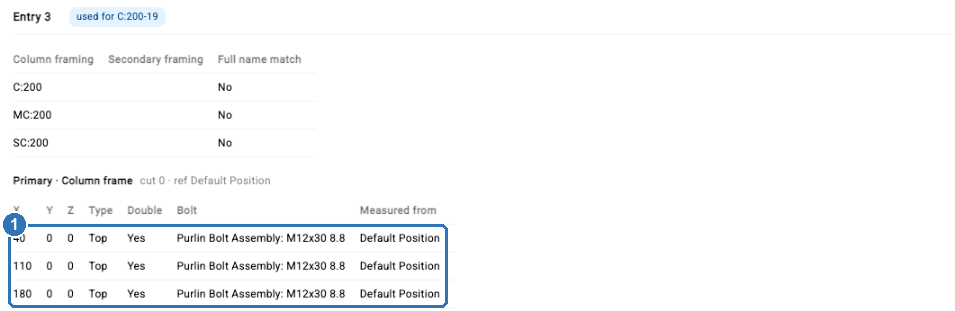
Click the reload arrow (3) beside the version number. Straight after a save the screen can still show the old numbers, even though the new ones have saved. The reload shows what was actually kept. Open the group and read each changed row (1).
See what changed, and go back
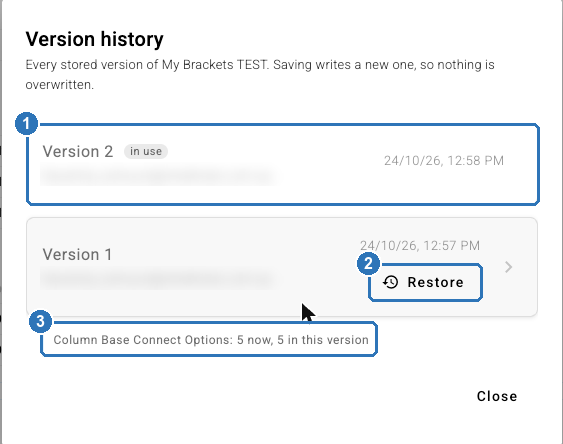
Click History. Every version is listed, newest first, with when it was saved and who saved it. The one the preset uses now is marked in use (1).
Click What changed on an older version to see which groups differ from the version in use (3). It names the group, not the exact numbers, and it doesn't always list a change to a cut, so keep a note of what you changed.
To go back, click Restore (2) on the version you want. Restoring adds a new version with the old contents, so the restore shows in History too. The preset keeps its current name.
Next in this series: How do I test a preset change before I use it on real jobs?
Questions? Email support@shedmate.com.au.