
A quote revision keeps a quote exactly as it was when you generated its documents: the documents, the prices and the shed. Open any revision to check what you sent or download the same documents again. Restore one when you want to keep working from that earlier quote.
The short version
- Generate your documents from Reports. ShedMate saves a revision with them, if your revision settings allow it
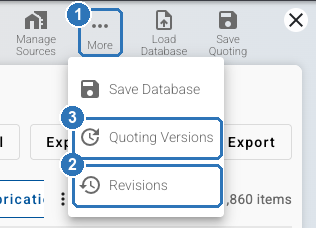
- To check one, click More, then Revisions, then the revision
- Saved documents has the documents you sent. Price breakdown shows what has changed since
- To work from it again, click Restore these versions, then check the total
What a revision keeps
Each revision holds:
- the documents you generated, under Saved documents
- the shed version and the quoting version it was priced with, each marked (frozen)
- its total, who saved it and when
A saved revision doesn't change, even when your prices, your designs or ShedMate itself change later.
A revision isn't a database version. Database versions are saves of your company's pricing. The Quoting Version in the footer counts this quote's own saves. A revision freezes one quoting version, one shed version and their documents together. See How do my ShedMate databases and their versions work?
Save a revision
- Open the draft or job, then open Instant Quoting.
- Click Reports. On Documents, pick your templates.
- Click Generate Documents (2). ShedMate generates your documents and saves your quoting. If your revision settings allow it, it saves a revision too.
The revision settings on the Reports tab (1) decide whether generating documents saves a revision. They also decide whether your sales team can see, switch, regenerate or restore revisions from the Quoting window in the Shed Designer. Generating documents there saves a revision too.
No revision after you generate documents? Ask whoever looks after your pricing setup to check these settings.
Check a revision
- In Instant Quoting, click More (1), then Revisions (2).
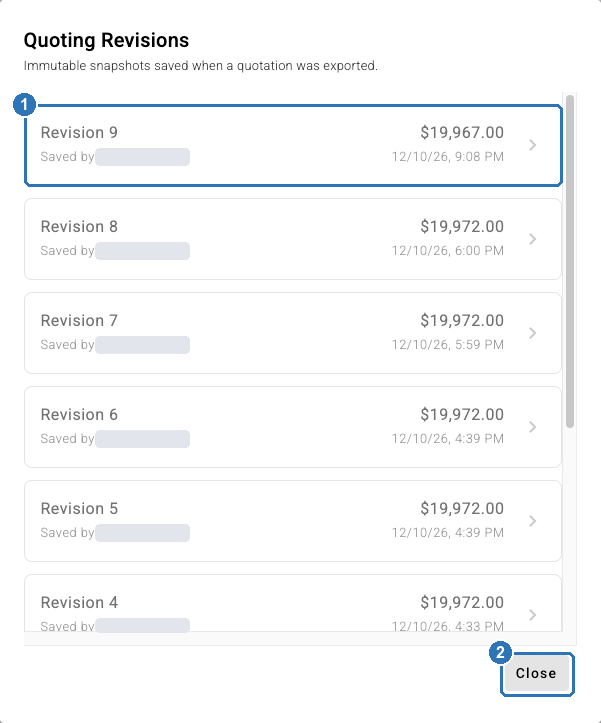
- The Quoting Revisions window lists each revision, newest first, with its total, who saved it and when (3). Click the one you want.
The revision opens on Saved documents:
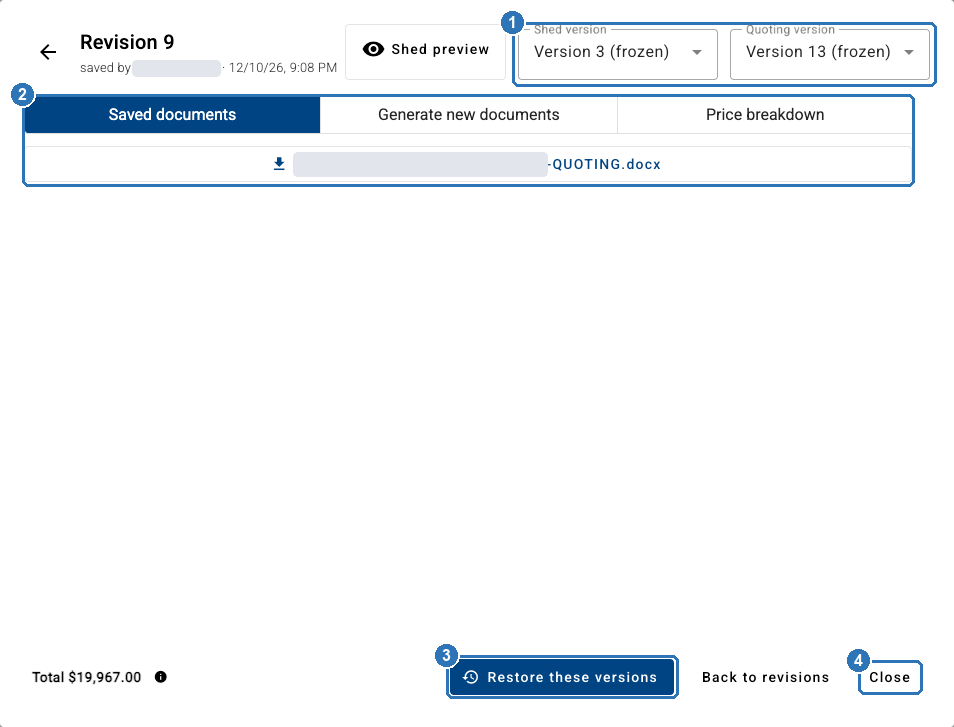
- Shed version and Quoting version (1) show the versions saved with it, marked (frozen)
- Saved documents (2) lists the documents generated with this revision. Click one to download it exactly as it was
- Generate new documents makes new documents from this revision, for example to reissue a quote
- Shed preview shows the shed in the version showing in Shed version
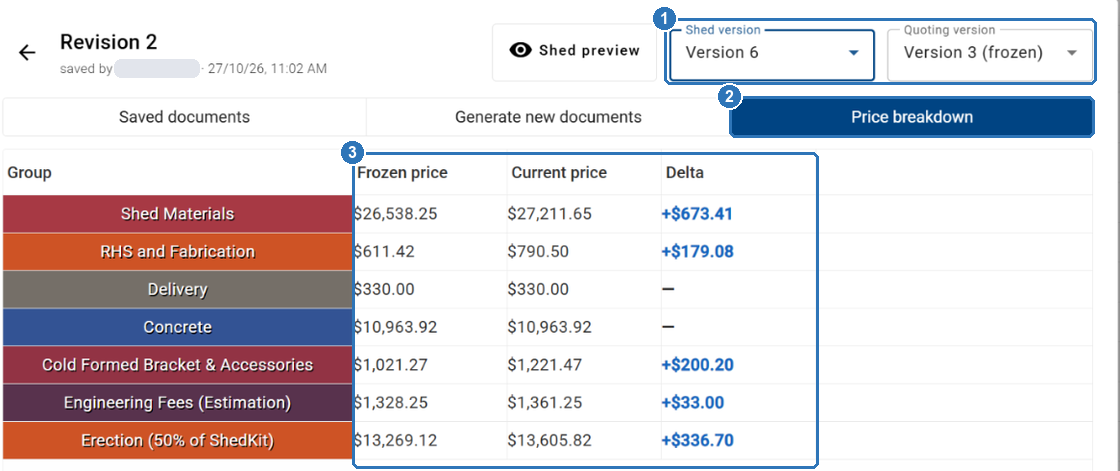
Price breakdown (2) shows each price group's Frozen price beside its Current price, and the Delta between them (3). To see what another version would change, pick it in Shed version or Quoting version (1).
Only checking? Click Close. Opening a revision doesn't change your quote.
Restore a revision
Restore a revision to carry on from it, for example when a customer comes back to an earlier option.
- Open the revision.
- Check Shed version and Quoting version. Restore uses the versions showing in these two boxes, so set them back to the (frozen) versions if you changed them to compare.
- Click Restore these versions. ShedMate tells you which shed and quoting versions it will restore (1). Confirm (2).
- ShedMate saves them as new versions of your shed and your quoting. The revision itself stays as it was.
- Check the quote's total against the revision's total.
A restored revision can price slightly differently. ShedMate re-prices a restored revision to match its saved price as closely as it can. If designs, engineering settings or your rules have changed since, small differences can show. The revision and its saved documents keep the price you sent, so check the restored quote before you send new documents.
Good to know
- Revisions are kept for each draft or job
- No revisions have been saved for this job yet means just that. It doesn't show whether a quote went out another way, so keep the copy you send with your job records
- Can't see Revisions under More? Ask your company admin to check your access
- If your company uses the new quote document editor, you can download a document or copy a link to it straight after generating. Your existing revisions and documents stay where they are
Related articles
- How do my ShedMate databases and their versions work?
- My quote still shows my old prices. How do I update it?
Stuck? Email support@shedmate.com.au with the job number and the revision number, and we'll look at it with you.