
Instant Ordering prepares supplier order quantities from the job's configured sources. Open Orders on your job, check the package and supplier view, review the quantities, then export the order for checking before you send it.
Your quoting and ordering setups do different jobs. A correct quote total alone does not confirm that every required component is included in an order.
Which Orders screen are you using?
| What you see | Which instructions to use |
|---|---|
| A procurement package, B.O.M., Virtual Items, Variables and supplier-view buttons | Follow the Instant Ordering steps below. |
| Search Material, Template, Add Order + and Save Order Request | You are using the legacy Orders screen. Its purchase-order request steps are different. Ask your administrator or ShedMate support about the ordering setup available to your company. |
The instructions below are for Instant Ordering. Do not look for the legacy Add Order + and Save Order Request buttons on this screen. A feature's availability depends on your company's setup and your access.
Check the job and source first
- Confirm that you are on the intended job and that its design is current.
- Check the intended ordering database and version in the footer. Each job retains its own setup until you deliberately load or save another version.
- For components supplied through the Bracket System, check the conversion uses the current shed and intended bracket preset. After conversion, use Sync Frames → Sync Stock Items → Save.
- Return to Orders and select Refresh so it reads the updated source.
If the bracket screen says Shed Outdated, review it before preparing the order. Converting, loading or saving can replace work, so check the affected job first.
Review the package and supplier view
Choose the intended procurement package, then the supplier view. View names depend on your company's setup.
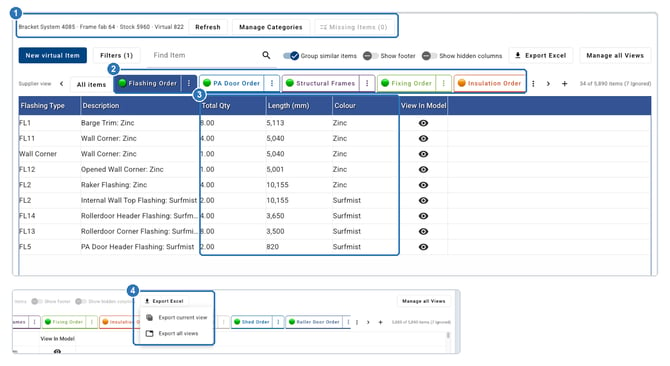
Screens captured 9 October 2026. This combines two Orders screens: (1) the source counts, Refresh and Missing Items, (2) the supplier views, (3) the quantities, lengths and colours to check, and (4) Export Excel, with Export current view and Export all views. Missing Items (0) is a check, not proof that the order is complete.
Check the products, descriptions, units, lengths and quantities against the design and what the supplier will provide. Check fixings, connections, accessories and other items needed for that job too.
Missing Items (0) is a useful check, not a completeness certificate. Excluded categories, source rules, filters or missing setup can still leave an item out. Review the contents of the order, rather than relying on a count alone.
Export the order you intend to send
- Select the supplier view and clear unintended search or filter selections.
- Open Export Excel.
- Choose Export current view for the view you are reviewing, or Export all views when you deliberately need the full set.
- Open the exported file. Check its contents, quantities, units, supplier details and any customer information before sending it.
Exporting prepares a file. You still review and send it to the supplier through your normal process.
Keep job saves and reusable setup separate
Use Save Ordering to retain the job's ordering version. More → Save as Database writes a reusable procurement database version and can affect jobs that later load it.
Before changing reusable setup, compare the version loaded on the job with the database's current version. Saving from an older copy can replace newer changes. Do not save a database simply to export an order.
Related help
- Check your order against the model before you send it
- What do Sync Frames and Sync Stock Items do?
- Set up your supplier views for ordering
- Export a purchase order to send to your supplier
- How do I adjust my ordering setup without breaking my orders?
If your screen or order differs, email support@shedmate.com.au with your company and job name and what you are trying to order.