
Short answer: open Manage Presets, pick your preset and click Duplicate. The copy is a separate preset. Changes you make to it don't touch your live one, and you can archive it when you're done.
Make a test copy
- Open a job, click Brackets, then Manage Presets
- Pick your preset in the Bracket preset box
- Click Duplicate, name the copy, click Create copy
Make the copy
| Step | |
|---|---|
| 1 | Open any job and click Brackets. Click Manage Presets (1) at the top right |
| 2 | In the Bracket preset box, pick the preset your team uses |
| 3 | Click Duplicate (1) |


In the Duplicate preset window, give the copy a name your team will know is a test (1), for example your preset's name followed by TEST. If you see Save it to (2), leave it on This company. Click Create copy (3).
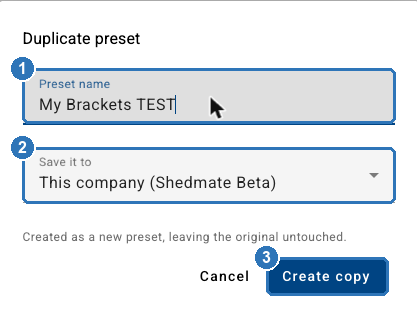
The copy opens straight away. Check the Bracket preset box shows the new name before you click Edit.
Your team can see the copy. It's offered at Convert Shed as soon as it's made. A clear TEST name stops anyone converting a real job with it.
Presets with a blue Shedmate badge are maintained by us, so they can't be changed. Duplicate one the same way to start your own.
When you're finished: archive the test copy
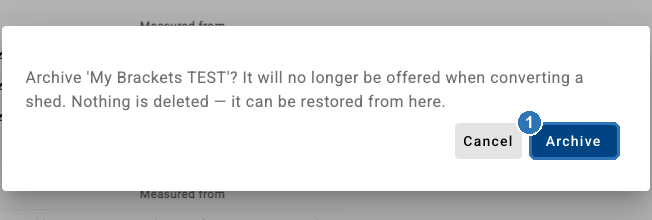
Pick the test copy in the Bracket preset box and click Archive, then Archive again to confirm (1). It's no longer offered when converting a shed. Nothing is deleted.
Bring an archived preset back
Tick Show archived (3). Archived presets appear in the list with an ARCHIVED tag (1). Pick one and click Restore (2).

Next in this series: How do I read a bracket rule? and How do I change where holes are punched?
Questions? Email support@shedmate.com.au.