
Short answer: open Fab Frames, click List, select all frames, click Orders, then Go. ShedMate makes PDF punching sheets and CSV instruction sets and saves both to the job's Storage. Send them with your structural frames order: they are separate files, not part of the purchase order.
Before you start
- The shed is converted in the Bracket System from the latest version, with Sync Frames done (see How do I convert my shed in the Bracket System?).
- If the Bracket System shows Shed Outdated, convert again first, or the punching list will match an older design.
Open the Fabrication module
On the job page, click Fab Frames, or Go to Fabrication Module straight after Sync Frames. If Fab Frames is missing, ask your company admin to check your access. The module shows one part at a time, with its part number, quantity and punch positions.
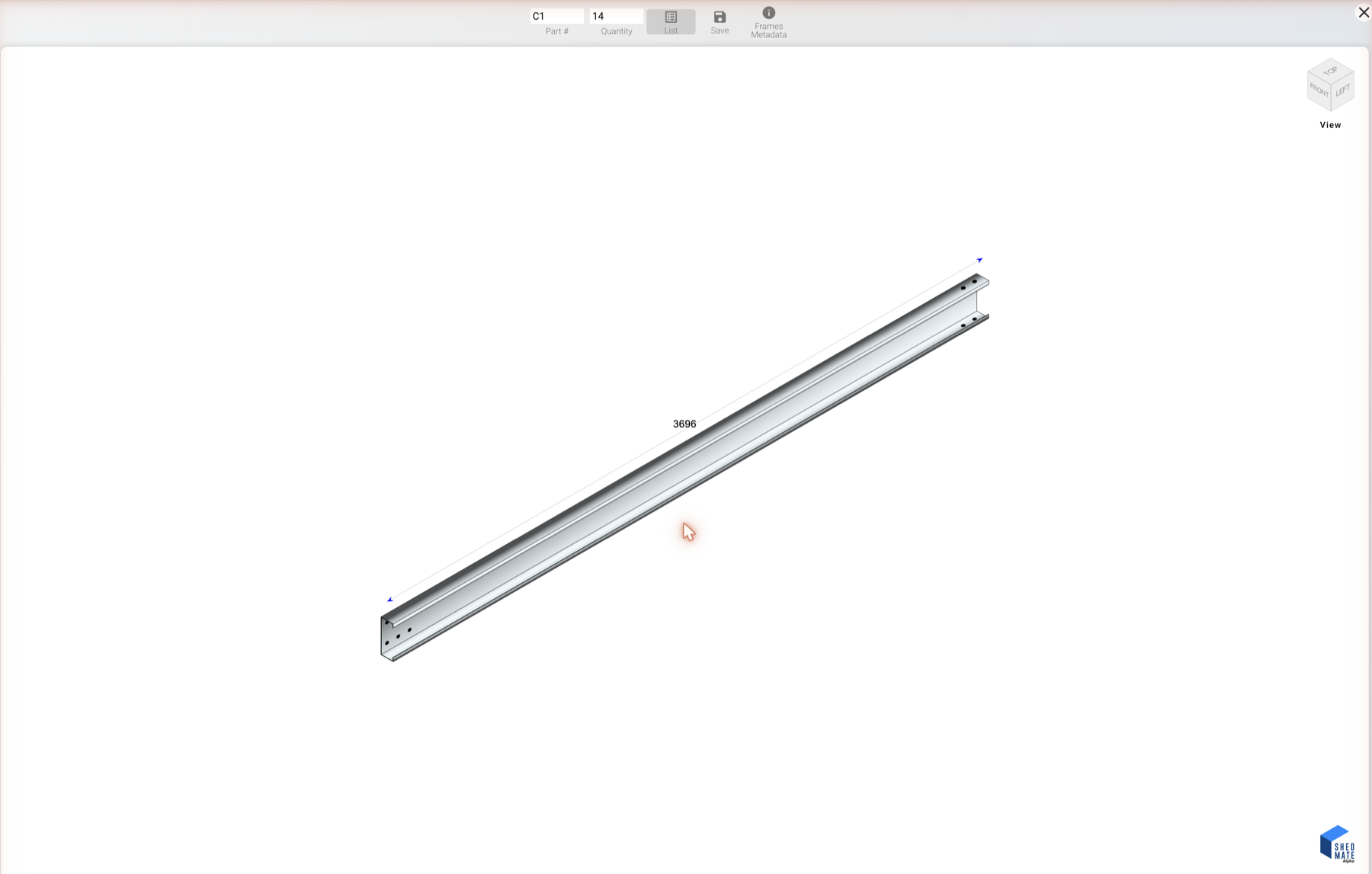
Most people never need to edit punching here. If you just want the punching list, go straight to the next step.
Select the frames and generate the output
Click List in the toolbar. Every part in the job is listed with its section and quantity.
| Step | |
|---|---|
| 1 | Click Select All (1) so every part is ticked |
| 2 | In the part list, click Orders (2). This is not the Orders button on the job page. ShedMate saves the frames first, then shows what it will make |
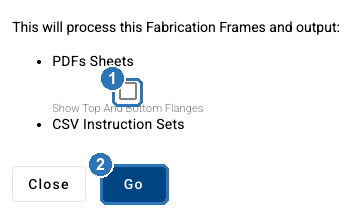
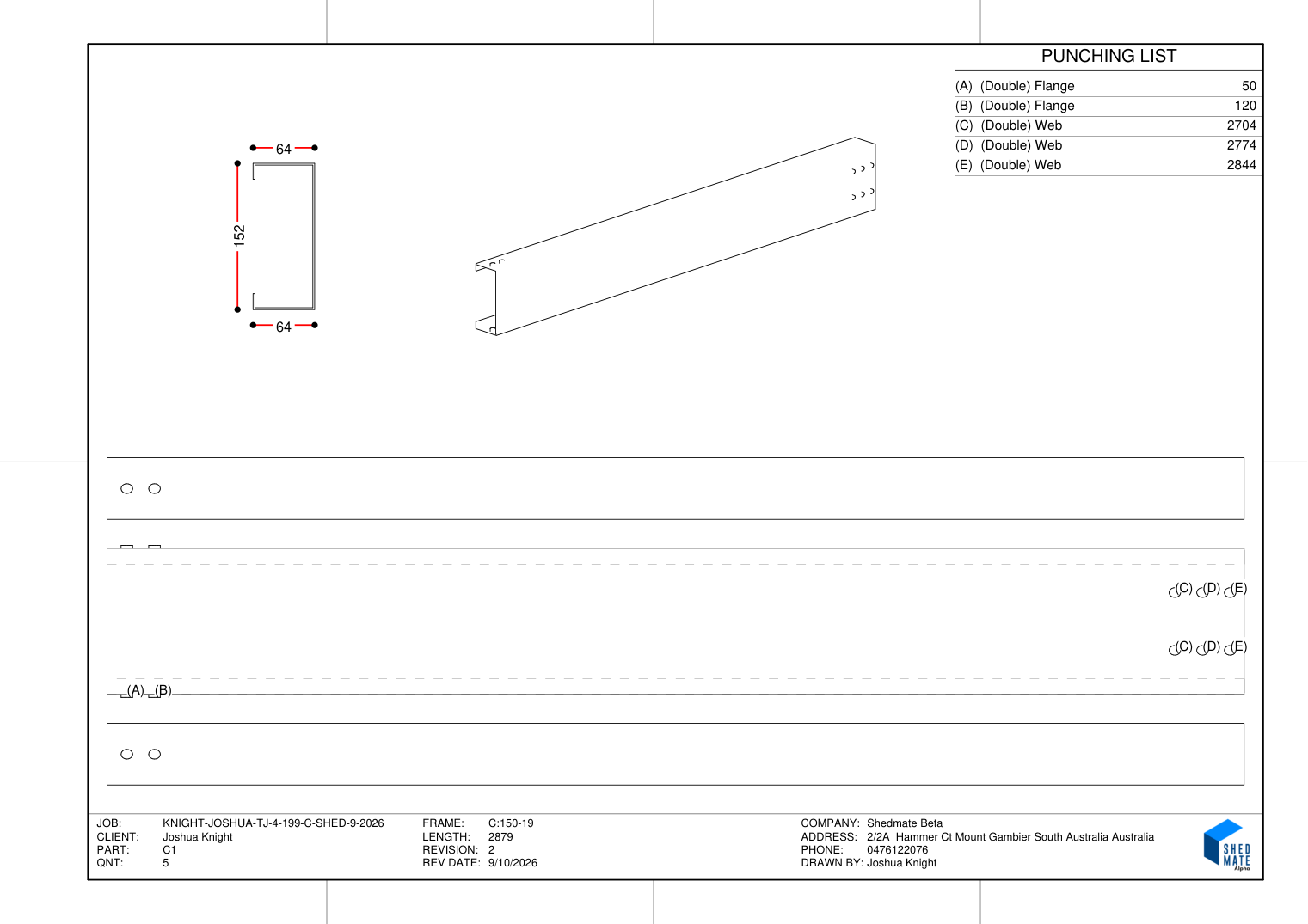
| 3 | Tick Show Top And Bottom Flanges if you want the flange views on the PDF sheets (see below) |
| 4 | Click Go |
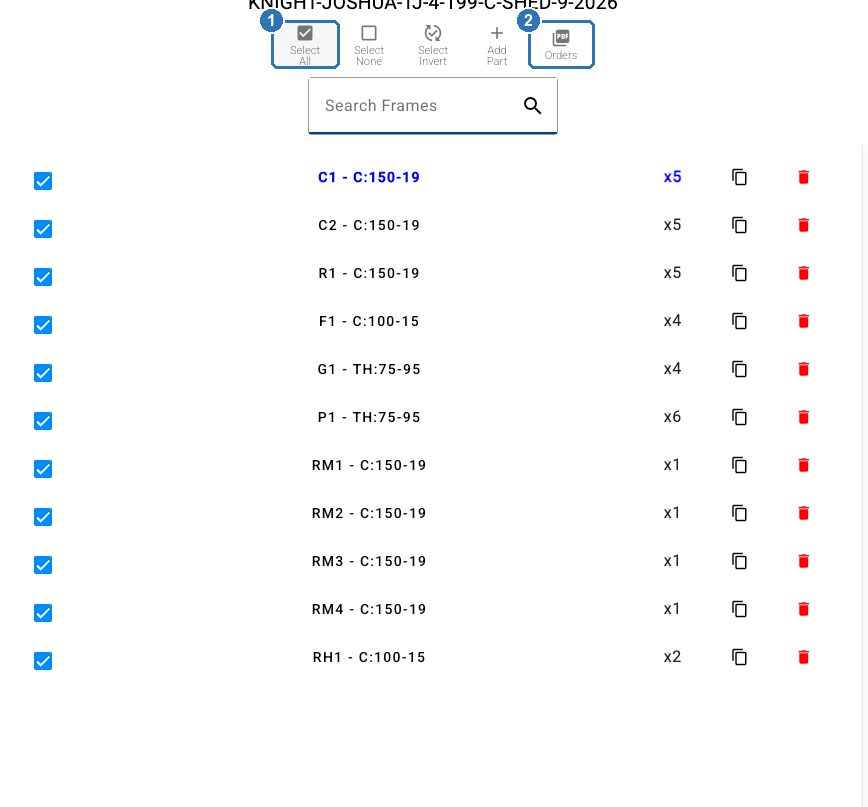
Each row has its own delete icon. It sits at the end of the row, next to duplicate. Use the tick boxes and Select All to choose parts, and don't click the red icon unless you mean to remove that part.
Each time you click Orders, ShedMate saves a new job version and the files in Storage move to a new version too.
Download or share the files
When it finishes, download the files (1, 2) or copy a link to send to your roll former.
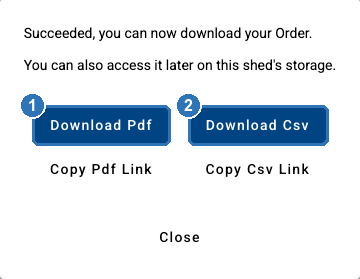
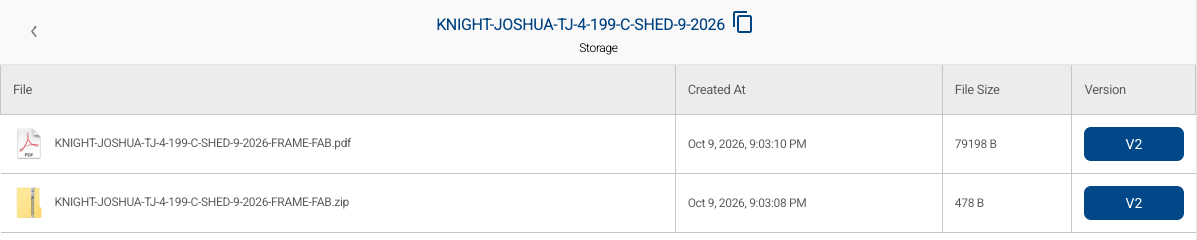
You can also get them later from the job's Storage: the PDF sheets and a zip file of the CSV instruction sets, each named after the job. If you can't see Storage, ask your company admin to check your access.
What's in the punching PDF
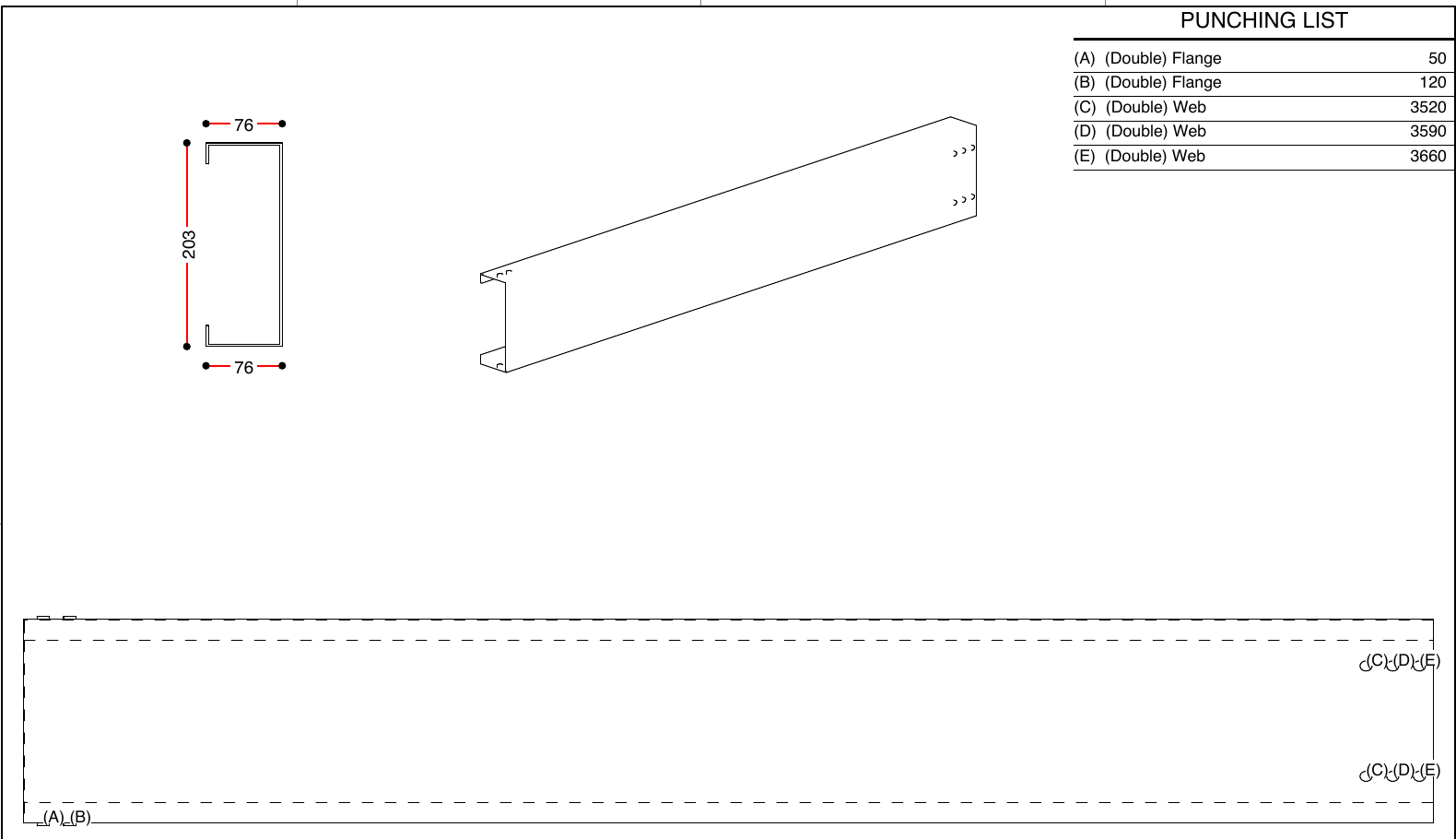
The PDF has one page per part, in the same order as the part list. Each page shows:
| What it shows | |
|---|---|
| Section view | The profile with its dimensions |
| 3D view | The member in 3D with its holes |
| Punching List | Each hole by letter, whether it is in the flange or the web (and double or single), and its distance in mm along the member |
| Flat layout | The member laid out full length with every hole marked by its letter |
| Title block | Job, client, part, quantity, frame section, length, revision and date, and your company details |
Show Top And Bottom Flanges adds two strips to each page: the top flange and the bottom flange laid out full length with their holes, above and below the flat layout. The holes and the punching list are the same either way.
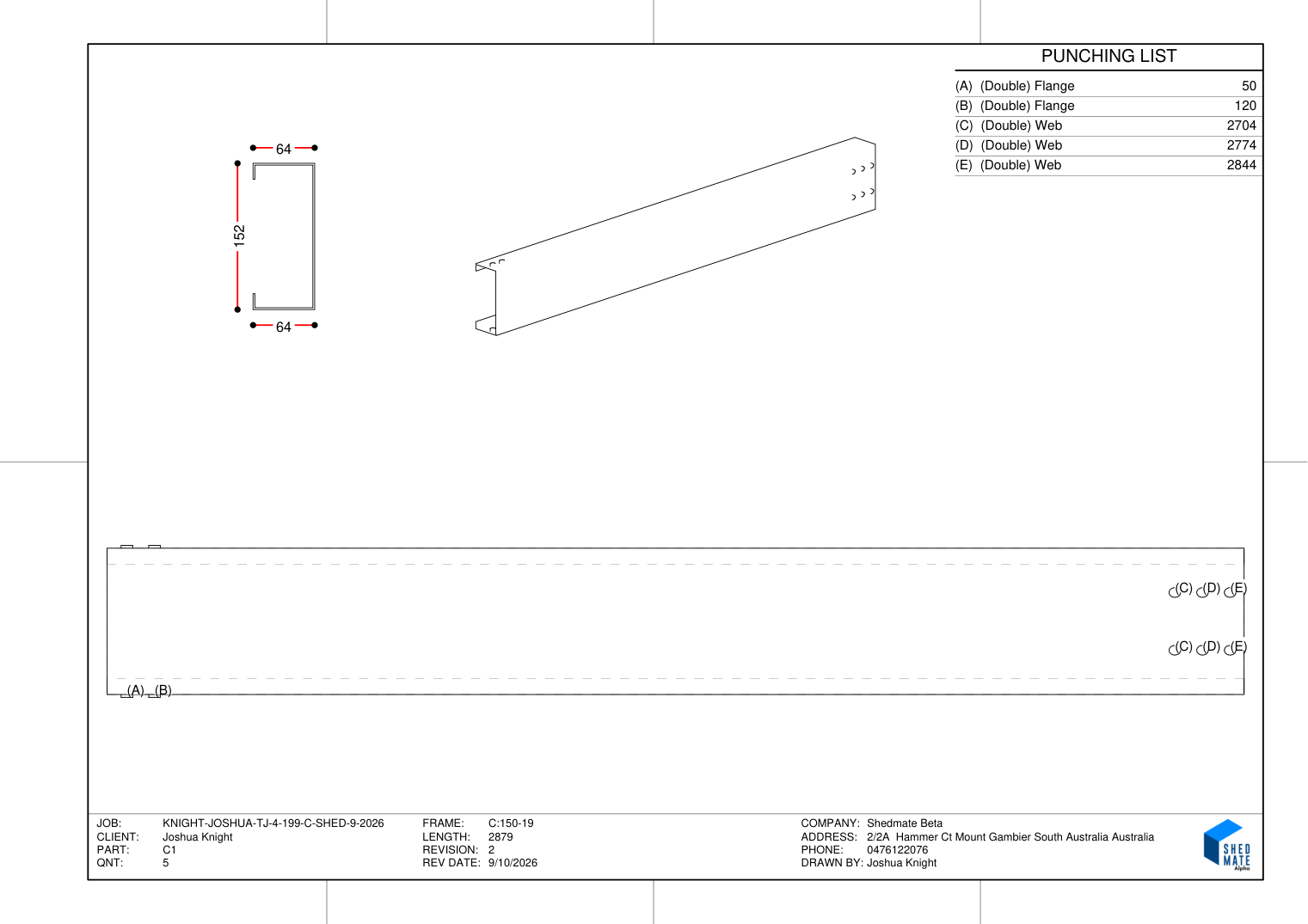
Check the part and quantity in the title block against the order before you send it.
Send the punching files with the steel order. The purchase order does not include punching detail, and the punching files are not attached to it. A supplier who receives only the purchase order has no punch positions. Attach the PDF, or its link, every time you send a structural frames order.
Ask your roll former which file they need. The PDF shows every hole. The CSV instruction sets are for roll formers whose machines read that format.
Stuck? Email support@shedmate.com.au with the job number.