
Start with the right list
A pricing database can contain more items than you need for one quote. Use a view to narrow the list, then use Find Item to locate an item by name or ERP code.
| Step | What to do |
|---|---|
| 1 | Open your draft or job details, then click Instant Quoting. |
| 2 | Open Pricing Database, then the Main tab. |
| 3 | Look for Find Item, Filters and the row of view buttons above the table. |

Pick a view
Click a named view, such as Claddings, to show the rows its filters select. Click View All to return to the full list.
Use the arrows at the ends of the view row when more view buttons are off screen. The view names depend on the database your quote uses, so yours may differ from this example.
You can drag a view button to rearrange the row. Keep this separate from dragging item rows or changing prices.
Find an item by name or ERP code
- Click Find Item and enter the item's name or ERP code.
- Check the matching row's Item Name, ERP and Category before changing anything.
- If you cannot find it, clear Find Item and choose View All, then search again.
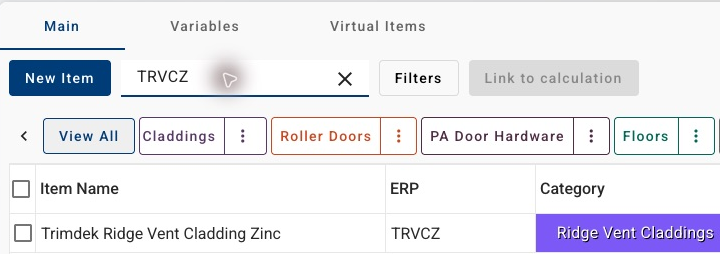
In the example below, searching for an ERP code finds one matching item. The code is an example, not a value to copy into your pricing setup.
Check the filters behind a view
Click Filters to open Configure Filters. The button shows a count when a filter is in use.
A rule has a field, a comparison and a value. In this example, the Claddings view uses Category → Equals → Claddings. It shows 16 of the database's 1,864 items.
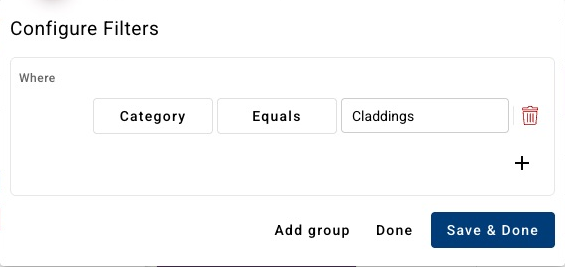
Click Done to close the panel. Check the active view and search text before treating a hidden item as missing from your database.
Keep a useful view
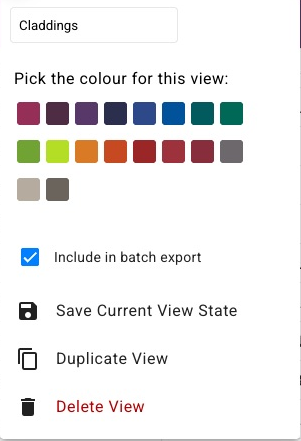
If you want a filter to be part of the selected view, use Save & Done. For its column widths, order and sorting, open that view's three-dot View options menu and choose Save Current View State.
Use Save Quoting when you intend to keep changes with this quote. Save Database is a separate operation for your company's pricing database. Do not use it just to find an item.
If you are unsure whether a change belongs in one quote or your company's database, check with your company admin before saving it.