
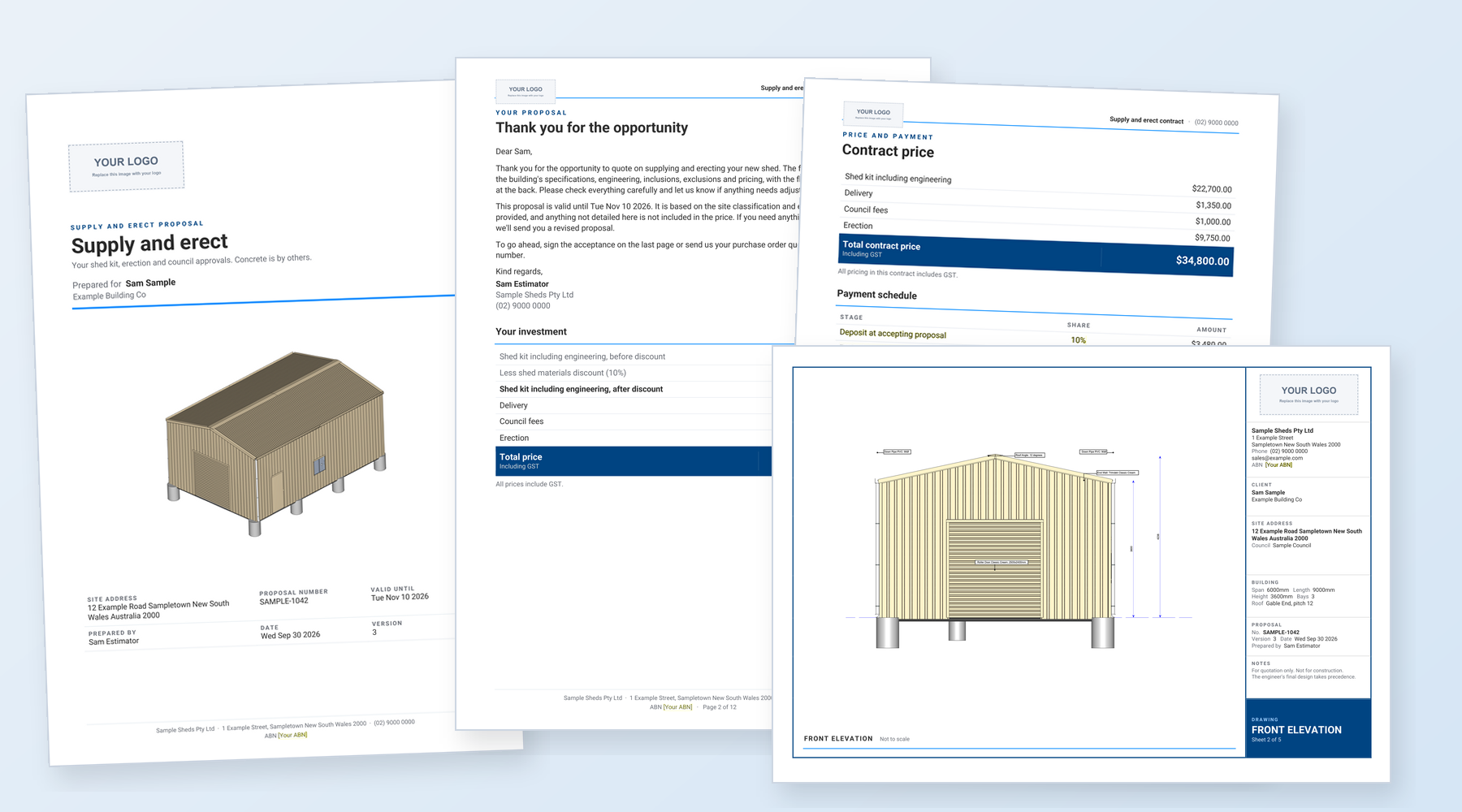
Download a ShedMate Word template, add your logo, upload it and generate quotes and contracts from your jobs. Each template prints one package, such as kit only or full turnkey, with its own payment schedule. Want your own layout or terms instead? Just ask.
The short version
- Download the template that matches what you sell
- In Word, replace the logo and check every yellow item
- Upload it in Settings, then Templates
- Generate on a test job and read it before a customer sees one
First, check your pricing database
The templates read their prices from document values in the pricing database that comes with ShedMate Lite. Those values add up each package, so the lines, total and payment stages agree to the cent.
- On the ShedMate Lite database? Download, upload and generate.
- On your own pricing database? Email us before you upload. The values need setting up against your own price groups, and we do that with you. Without them, prices and payment amounts print blank.
- Not sure? Generate on a test job. Blank prices mean the values aren't set up yet: email us and we'll set them up with you.
Which template suits what you sell
Each template prices only what its package includes, whatever the quote's switches say.
Quotes
| Template | Prices | Payments | Suits |
|---|---|---|---|
| Quote Preset Q1 - Kit only (Word) | Kit with engineering, and delivery | 10 / 30 / 60 | Kit supply only |
| Quote Preset Q2 - Kit and council (Word) | Q1 plus council fees | 10 / 30 / 60 | Kit, and you handle approvals |
| Quote Preset Q3 - Kit, erection and council (Word) | Q2 plus erection, concrete by others | 10 / 30 / 60 | Supply and erect |
| Quote Preset Q4 - Full turnkey (Word) | Q3 plus concrete | 10 / 30 / 30 / 30 | Supply and build |
Contracts
| Template | Prices | Payments | Suits |
|---|---|---|---|
| Contract Template - Supply only (Word) | Materials, delivery and engineering, a line each | 60 / 40 | Kit supply |
| Contract Preset A - Supply only itemised (Word) | As above, plus what's included and not | 60 / 40 | Kit supply, scope spelled out |
| Contract Preset B - Supply only kit package (Word) | One price: kit, delivery and engineering | 60 / 40 | Kit supply, one line |
| Contract Preset C - Kit and council (Word) | Kit with engineering, delivery and council fees | Set split | Kit, and you handle approvals |
| Contract Preset D - Kit, erection and council (Word) | C plus erection, concrete by others | 10 / 30 / 60 | Supply and erect |
| Contract Template - Supply and build (Word) | Materials, delivery, engineering, council, concrete and erection, a line each | 30 / 50 / 20 | Supply and build |
| Contract Preset E - Supply and build itemised (Word) | As above, plus what's included and not | 30 / 50 / 20 | Supply and build, scope spelled out |
| Contract Preset F - Supply and build by stage (Word) | Approvals, kit and construction | One payment per stage | Supply and build, paid by stage |
| Contract Preset G - Supply and build one price (Word) | One price | Set split | Supply and build, one figure |
The set split on C and G starts at 30 / 50 / 20. Ask us to change it.
Full turnkey documents need concreting switched on. Q4 and the supply and build contracts take concrete from the quote. On the quote's Variables tab, set Include Concreting to Yes, or concrete prints $0.
Get it ready in Word
If Word opens the file in Protected View, click Enable Editing. Then:
- Right-click the YOUR LOGO picture, click Change Picture and pick your logo.
- Check every yellow item. Fill in [Your ABN], keep or change the rest, then remove the highlight.
- Read the terms and product lines. They're a starting point, not legal advice: keep only what's true for your business.
- Leave anything inside double curly brackets as it is. ShedMate fills those in from the job.
You can reword the payment stage names. The amounts follow the printed percentages, so ask us for a different split.
Upload it to ShedMate
- Click Settings, then Templates. Templates Manager opens.
- Click Quoting for Q1 to Q4, or Contracts for a contract. The file goes to the tab that's showing.
- Click the upload button, the up-arrow icon at the top right, and pick your file.
- Check it's in the list, under File Name.
A file with the same name replaces the one in the list. Archive an old template from its row, and turn on Archived to see it again.
Generate documents from a job
- Open a test job in the Shed Designer and click Quoting on the toolbar.
- On the Reports tab, tick Generate quoting document and pick your quote template. For a contract, tick Generate contract document and pick that template.
- Click Generate Documents. If ShedMate asks about unquantified items or warnings, read them, then carry on.
- Read every page before you send one to a customer.
Template missing from the list? Reload the job. Each Generate Documents saves a new quoting version, so use a test job.
Figures print in cents with no thousands comma, such as $11996.95. If your quote screen rounds totals, the two can differ slightly.
Want it to look like your own quotes?
This is one layout, Type A, from a range. Layout, wording, payment stages and which prices show are all choices, and changing them is just a matter of asking. Email support@shedmate.com.au a quote or contract you use today, and we'll work through the changes with you and test them on a job.
Supplier documents
Purchase orders and other supplier documents aren't in this set. They come with ShedMate's document editor, which we switch on company by company. Email us if you'd like it.
Related articles
- "Template" means three different things in ShedMate
- How do I add shed drawings to a quote template?
- Find any field for your quote template
- How do my ShedMate databases and their versions work?
Stuck? Email support@shedmate.com.au with the job number and the template name.