---
title: How do I convert my shed in the Bracket System?
description: Convert your shed in the Bracket System, run Sync Frames and Sync Stock Items, and convert again after design changes so orders and punching lists match the design.
---
[Skip to content](https://help.shedmate.com.au/knowledge/convert-your-shed-in-the-bracket-system#main-content)
English
Show submenu for translations

- [Setting up Pricing in Shedmate (course)](https://help.shedmate.com.au/knowledge/introduction-to-shedmate-costing-course)
- [Frequent Asked Questions](https://help.shedmate.com.au/knowledge/frequent-asked-questions)
- [Setting up Shedmate](https://help.shedmate.com.au/knowledge/setting-up-your-enquiry-system-for-marketing-usage-qr-codes)
- [Integrations](https://help.shedmate.com.au/knowledge/trimble-tekla-structures-integration)
Open main navigation
Close main navigation
- [Setting up Pricing in Shedmate (course)](https://help.shedmate.com.au/knowledge/introduction-to-shedmate-costing-course)
- [Frequent Asked Questions](https://help.shedmate.com.au/knowledge/frequent-asked-questions)
- [Setting up Shedmate](https://help.shedmate.com.au/knowledge/setting-up-your-enquiry-system-for-marketing-usage-qr-codes)
- [Integrations](https://help.shedmate.com.au/knowledge/trimble-tekla-structures-integration)
- English
Show submenu for translations
- Contact us
Contact us
How can we help you?
- There are no suggestions because the search field is empty.
1. [Help Center](https://help.shedmate.com.au/knowledge?hsLang=en)
2. [Preparing for Fabrication and Delivery](https://help.shedmate.com.au/knowledge/preparing-for-fabrication-and-delivery?hsLang=en)
# How do I convert my shed in the Bracket System?
Short answer: **the Bracket System turns your design into the members that get fabricated and ordered.** Convert the shed, then click **Sync Frames** and **Sync Stock Items**. Orders and punching lists are built from this conversion, so it must come from the latest version of the design.
**Three habits that keep orders matching the design**
1. **Convert from the latest shed version.** If the toolbar shows **Shed Outdated**, convert again before you order.
2. **Convert again after every design change**, including changes made by engineering.
3. **Finish every conversion with Sync Frames, then Sync Stock Items.**
### Converting a shed for the first time
On the job page, click **Brackets**. For a shed that has not been converted yet, the toolbar shows **Convert Shed** (1). Click it.

A panel opens on the left with the job number, the shed version and **Bracket Options**.
| | Step |
| --- | --- |
| 1 | Check the shed **Version** is the latest one |
| 2 | Pick the **Bracket Options** (1) that match the roof: a gable option for a gable shed, a skillion option for a skillion shed |
| 3 | Click **Run** (2) |

**If Convert Shed is greyed out,** hover over it. Your Bracket System access may be view only, and your company admin can give you edit access.
**Match Bracket Options to the roof type.** A gable option on a skillion shed can stop the conversion. If a conversion fails, check this first, then click **Run** again. Don't run the syncs after a failed conversion.
**Your company's bracket standards** are kept as Bracket Options presets. The icon beside **Bracket Options** opens **Manage presets**.
### Reading the converted model
When the conversion finishes, the shed is drawn as coloured members and the toolbar fills with the next steps. Each colour is a different member. The conversion saves itself as a new bracket version, so you don't need to click **Save** after **Run**.

### Sync Frames, then Sync Stock Items
These two steps send the conversion on to ordering and fabrication.

| | Step |
| --- | --- |
| 1 | Click **Sync Frames** (1). The frames go to the Fabrication module, and a message confirms it |
| 2 | Click **Close**, or **Go to Fabrication Module** if you want the punching list now |
| 3 | Click **Sync Stock Items** (2). This adds the items that are not drawn as members, such as flashings and fixings. A message at the bottom of the screen says **Stock Items Saved: You can now go to Orders** |
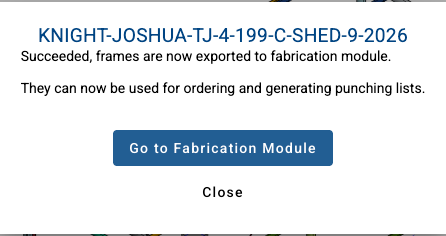

Both syncs save their own results, so the order reads them straight away. **Save** in the toolbar is for changes you make to the brackets by hand.
**Skip a sync and the order can be short.** Run both every time you convert. Then check the order against the model before you send it.
### When the design changes after converting
Orders and punching lists follow the **last conversion**, not the current design. If anyone changes the shed after it was converted (a new size, a different insulation, an engineering revision), the order keeps the old parts until you convert again.
The Bracket System tells you when this has happened: the toolbar shows **Shed Outdated**. Click it to see which version the brackets came from.

| | Step |
| --- | --- |
| 1 | Click **Shed Outdated**, then **Load Latest Shed** |
| 2 | Check **Bracket Options** matches the roof, then click **Run** |
| 3 | Click **Sync Frames**, then **Sync Stock Items** |
| 4 | Go to **Orders** and click **Refresh** so the order reads the new conversion |
**Load Latest Shed unloads the brackets on screen.** Any bracket changes you have not saved are lost, so click **Save** first if you have made edits you want to keep.
**Check for Shed Outdated before every order.** It is the quickest way to know the order matches the design. If the order and the quote disagree on a product, this is the first thing to check.
Stuck? Email support@shedmate.com.au with the job number.
- [Introduction to Shedmate (How does it work)](https://help.shedmate.com.au/knowledge/introduction-to-shedmate-how-does-it-work?hsLang=en#main-content)
- [Introduction and useful information](https://help.shedmate.com.au/knowledge/introduction-to-shedmate-how-does-it-work?hsLang=en#introduction-and-useful-information)
- [Workflow for Cold Formed x Structural Steel](https://help.shedmate.com.au/knowledge/introduction-to-shedmate-how-does-it-work?hsLang=en#workflow-for-cold-formed-x-structural-steel)
- [Frequent Asked Questions (FAQ)](https://help.shedmate.com.au/knowledge/frequent-asked-questions-faq?hsLang=en)
- [Release Notes](https://help.shedmate.com.au/knowledge/release-notes?hsLang=en#main-content)
- [2025](https://help.shedmate.com.au/knowledge/release-notes?hsLang=en#2025)
- [2024](https://help.shedmate.com.au/knowledge/release-notes?hsLang=en#2024)
- [2026](https://help.shedmate.com.au/knowledge/release-notes?hsLang=en#2026)
- [Setting up Shedmate](https://help.shedmate.com.au/knowledge/setting-up-shedmate?hsLang=en#main-content)
- [Getting Started](https://help.shedmate.com.au/knowledge/setting-up-shedmate?hsLang=en#getting-started)
- [Setting up Shedmate Costing (COURSE)](https://help.shedmate.com.au/knowledge/setting-up-shedmate-costing-course?hsLang=en#main-content)
- [Introduction to Cost Engineering & Shedmate](https://help.shedmate.com.au/knowledge/setting-up-shedmate-costing-course?hsLang=en#introduction-to-cost-engineering-shedmate)
- [Starting from Scratch - A necessary learning practice](https://help.shedmate.com.au/knowledge/setting-up-shedmate-costing-course?hsLang=en#starting-from-scratch-a-necessary-learning-practice)
- [Fast-Tracking Your Pricing Setup with Pre-Built Templates](https://help.shedmate.com.au/knowledge/setting-up-shedmate-costing-course?hsLang=en#fast-tracking-your-pricing-setup-with-pre-built-templates)
- [Integrations and API](https://help.shedmate.com.au/knowledge/integrations-and-api?hsLang=en)
- [Designing Shed Projects](https://help.shedmate.com.au/knowledge/designing-shed-projects?hsLang=en#main-content)
- [Doors and Openings](https://help.shedmate.com.au/knowledge/designing-shed-projects?hsLang=en#doors-and-openings)
- [Quoting A Shed Project](https://help.shedmate.com.au/knowledge/quoting-a-shed-project?hsLang=en)
- [Preparing for Fabrication and Delivery](https://help.shedmate.com.au/knowledge/preparing-for-fabrication-and-delivery?hsLang=en)
- [Setting up Pricing in Shedmate (course)](https://help.shedmate.com.au/knowledge/introduction-to-shedmate-costing-course)
- [Frequent Asked Questions](https://help.shedmate.com.au/knowledge/frequent-asked-questions)
- [Setting up Shedmate](https://help.shedmate.com.au/knowledge/setting-up-your-enquiry-system-for-marketing-usage-qr-codes)
- [Integrations](https://help.shedmate.com.au/knowledge/trimble-tekla-structures-integration)
[](http://www.shedmate.com.au)
1 James St, Mount Gambier 5290
South Australia
[mailto:support@shedmate.com.au](mailto:support@shedmate.com.au)
Copyright © 2025, Shedmate