---
title: Check your order against the model before you send it
description: "Check an order against the shed before you send it: Refresh, Missing Items, compare each supplier view, and the four causes when something is missing."
---
[Skip to content](https://help.shedmate.com.au/knowledge/check-your-order-against-the-model#main-content)
English
Show submenu for translations

- [Setting up Pricing in Shedmate (course)](https://help.shedmate.com.au/knowledge/introduction-to-shedmate-costing-course)
- [Frequent Asked Questions](https://help.shedmate.com.au/knowledge/frequent-asked-questions)
- [Setting up Shedmate](https://help.shedmate.com.au/knowledge/setting-up-your-enquiry-system-for-marketing-usage-qr-codes)
- [Integrations](https://help.shedmate.com.au/knowledge/trimble-tekla-structures-integration)
Open main navigation
Close main navigation
- [Setting up Pricing in Shedmate (course)](https://help.shedmate.com.au/knowledge/introduction-to-shedmate-costing-course)
- [Frequent Asked Questions](https://help.shedmate.com.au/knowledge/frequent-asked-questions)
- [Setting up Shedmate](https://help.shedmate.com.au/knowledge/setting-up-your-enquiry-system-for-marketing-usage-qr-codes)
- [Integrations](https://help.shedmate.com.au/knowledge/trimble-tekla-structures-integration)
- English
Show submenu for translations
- Contact us
Contact us
How can we help you?
- There are no suggestions because the search field is empty.
1. [Help Center](https://help.shedmate.com.au/knowledge?hsLang=en)
2. [Preparing for Fabrication and Delivery](https://help.shedmate.com.au/knowledge/preparing-for-fabrication-and-delivery?hsLang=en)
# Check your order against the model before you send it
Short answer: **check the order before you send it.** Click **Refresh**, look at **Missing Items**, then compare the counts in each supplier view with your shed. If something is missing, work through the four causes at the end of this article.
**The check, in four steps**
1. Click **Refresh** so the order reads the latest version of the shed
2. Look at **Missing Items** and open it if the number is above 0
3. Open each supplier view and compare the counts with the shed
4. Something missing? Work through the four causes below
### Check the order
| | Step |
| --- | --- |
| 1 | On the job page, click **Orders**. Pick your package at the top of the screen |
| 2 | Click **Refresh** (1), so the order reads the latest conversion |
| 3 | Look at **Missing Items** (2). The number in brackets is how many items no supplier view in this package picks up |
| 4 | If the number is above 0, click **Missing Items** to see each item. The section after this one shows how to give an item a supplier view |

Click **Missing Items** and the list opens. It shows each item that no supplier view picks up yet, with its category and where it comes from. Click the eye under **View In Model** to see where the item sits on the shed.

Now open each supplier view you are about to send (1). Count the parts that depend on your design and compare them with the shed: ridge caps, barge flashings, downpipes, fascia brackets and gutter brackets. **Total Qty** (2) is the number to check.

**A count of 0 does not mean the order is complete.** **Missing Items** only counts items that reached the order but sit in no supplier view. A part that never reached the order is not counted. Comparing each supplier view with the shed is the check that finds it.
**Downpipes drive other counts.** Too few downpipes means too few pipe brackets and pipe accessories. Fix the shed, convert it again, then click **Refresh**.
### Give a missing item a supplier view
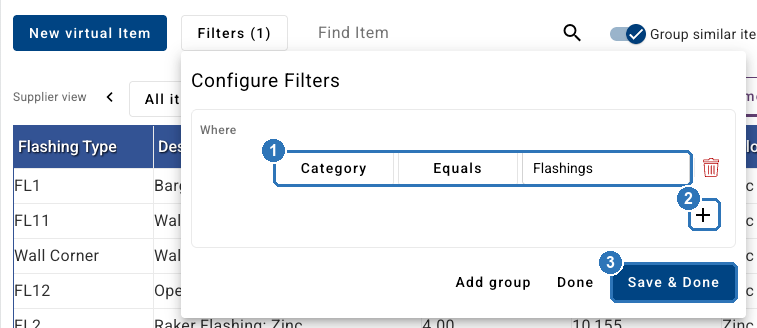
A supplier view picks up items by its filter rules, for example "Category equals Flashings". To catch an item that no view picks up, add a rule to the view that should carry it.
| | Step |
| --- | --- |
| 1 | Open the supplier view that should carry the item and click **Filters**. Each rule reads like a sentence (1) |
| 2 | Click **+** (2) and add a rule that matches the item, for example its category or sub-category |
| 3 | Click **Save & Done** (3). The item leaves the **Missing Items** list |
| 4 | Click **Save Ordering** to keep the change on this job |
### If something is missing, work through these causes
| Cause | What to do |
| --- | --- |
| **The quote ignores that category** | Click **Manage Categories**. With **Match quoting** ticked, the order leaves out the categories and sub-categories your quote ignores, for example Ridge Caps. If a part you need is listed there, untick **Match quoting**, take it off the list, click **Apply**, then **Save Ordering**. |
| **The job is on an older database** | In **Instant Quoting**, click **Load Database**, then click the row for your database, not the small icons beside it. One of those icons archives the database. Then click **Save Quoting**. On the Orders screen, if the footer says **update available**, click it and read the message before you click **Update**. |
| **The conversion is out of date** | If the Bracket System toolbar shows **Shed Outdated**, convert the shed again. The steps are in *How do I convert my shed in the Bracket System?* Then click **Refresh**. |
| **The syncs were not run** | In the Bracket System, click **Sync Frames**, then **Sync Stock Items**. Each one tells you when it is done. Then click **Refresh** here. |

**Read the update message before you click Update.** The update replaces this job's procurement packages, views, virtual items, formulas and variables with the newer database. Anything you set up only on this job, and did not save to a database, is lost. Nothing is written until you click **Save Ordering**.
### Before you click Fix Engineering
Do not click **Fix Engineering** on a job with certified engineering. It changes the shed, and the price and the order follow the change, so the shed no longer matches the certified drawings. Clicked it by mistake? The earlier design is still saved as a shed version. Open it from **Shed Versions**, save it so it becomes the latest, then convert the shed again.
### Related
- *How do I convert my shed in the Bracket System?* covers the conversion and the syncs.
- *Set up your supplier views for ordering* covers views, filters and packages.
- *Export a purchase order to send to your supplier* covers the export.
Still missing after all four? Email support@shedmate.com.au with the job number and the item.
- [Introduction to Shedmate (How does it work)](https://help.shedmate.com.au/knowledge/introduction-to-shedmate-how-does-it-work?hsLang=en#main-content)
- [Introduction and useful information](https://help.shedmate.com.au/knowledge/introduction-to-shedmate-how-does-it-work?hsLang=en#introduction-and-useful-information)
- [Workflow for Cold Formed x Structural Steel](https://help.shedmate.com.au/knowledge/introduction-to-shedmate-how-does-it-work?hsLang=en#workflow-for-cold-formed-x-structural-steel)
- [Frequent Asked Questions (FAQ)](https://help.shedmate.com.au/knowledge/frequent-asked-questions-faq?hsLang=en)
- [Release Notes](https://help.shedmate.com.au/knowledge/release-notes?hsLang=en#main-content)
- [2025](https://help.shedmate.com.au/knowledge/release-notes?hsLang=en#2025)
- [2024](https://help.shedmate.com.au/knowledge/release-notes?hsLang=en#2024)
- [2026](https://help.shedmate.com.au/knowledge/release-notes?hsLang=en#2026)
- [Setting up Shedmate](https://help.shedmate.com.au/knowledge/setting-up-shedmate?hsLang=en#main-content)
- [Getting Started](https://help.shedmate.com.au/knowledge/setting-up-shedmate?hsLang=en#getting-started)
- [Setting up Shedmate Costing (COURSE)](https://help.shedmate.com.au/knowledge/setting-up-shedmate-costing-course?hsLang=en#main-content)
- [Introduction to Cost Engineering & Shedmate](https://help.shedmate.com.au/knowledge/setting-up-shedmate-costing-course?hsLang=en#introduction-to-cost-engineering-shedmate)
- [Starting from Scratch - A necessary learning practice](https://help.shedmate.com.au/knowledge/setting-up-shedmate-costing-course?hsLang=en#starting-from-scratch-a-necessary-learning-practice)
- [Fast-Tracking Your Pricing Setup with Pre-Built Templates](https://help.shedmate.com.au/knowledge/setting-up-shedmate-costing-course?hsLang=en#fast-tracking-your-pricing-setup-with-pre-built-templates)
- [Integrations and API](https://help.shedmate.com.au/knowledge/integrations-and-api?hsLang=en)
- [Designing Shed Projects](https://help.shedmate.com.au/knowledge/designing-shed-projects?hsLang=en#main-content)
- [Doors and Openings](https://help.shedmate.com.au/knowledge/designing-shed-projects?hsLang=en#doors-and-openings)
- [Quoting A Shed Project](https://help.shedmate.com.au/knowledge/quoting-a-shed-project?hsLang=en)
- [Preparing for Fabrication and Delivery](https://help.shedmate.com.au/knowledge/preparing-for-fabrication-and-delivery?hsLang=en)
- [Setting up Pricing in Shedmate (course)](https://help.shedmate.com.au/knowledge/introduction-to-shedmate-costing-course)
- [Frequent Asked Questions](https://help.shedmate.com.au/knowledge/frequent-asked-questions)
- [Setting up Shedmate](https://help.shedmate.com.au/knowledge/setting-up-your-enquiry-system-for-marketing-usage-qr-codes)
- [Integrations](https://help.shedmate.com.au/knowledge/trimble-tekla-structures-integration)
[](http://www.shedmate.com.au)
1 James St, Mount Gambier 5290
South Australia
[mailto:support@shedmate.com.au](mailto:support@shedmate.com.au)
Copyright © 2025, Shedmate