
The default bridging family follows the purlin and girt section: top-hat sections use battens, while C and Z sections use hook locks and fascia hangers. A bridging member can also have its own family selected. This means different bridging does not always mean the purlins are different.
You can change the bridging selection without changing the purlins, provided the required family and section are available for your company and suitable for the engineered design.
Check the main building and awnings
Open Structure in the designer. Structural Frames lists the main building's sections, and Awnings Frames lists the awning's sections.
Compare Purlins and Side Wall Girts. A TH: prefix identifies a top-hat section; C: and Z: identify lipped sections. Then check the bridging member itself for a separate selection.
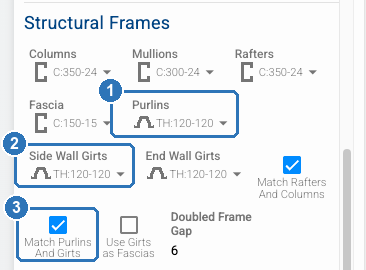
Under Structural Frames, compare (1) Purlins and (2) Side Wall Girts. TH: marks a top-hat section; C: and Z: mark lipped sections. (3) With Match Purlins And Girts selected, the girts follow the purlins.
Show the bridging
- Open Structure, then Girts and Purlins.
- Check Purlin and Girt Bridgings is selected.
- Make sure the structural framing is visible and zoom in on the area you want to check.
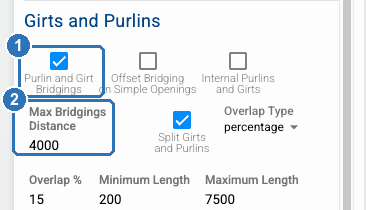
In Girts and Purlins, (1) Purlin and Girt Bridgings shows the bridging members when it is ticked. (2) Keep Max Bridgings Distance consistent with the approved design.
Bridging members are the thin members between purlins. If you select a purlin, you will see purlin settings instead. Cancel that selection and select the bridging member.
The controls also include Max Bridgings Distance. Keep spacing consistent with the approved design; do not change it just to make a member appear.
Choose a bridging family and section
- Select the bridging member in the model.
- Open Bridging Family and choose Batten or Hook Lock, as required for the design.
- When Batten is selected, use Bridgings to choose the section.
- If Limit Bridging Length is shown, check whether the length limit suits the approved design and supply requirements.
The available families and sections depend on your company's setup. If the required option is missing, contact support with the job name and the section you need. Do not substitute a different frame section to work around a missing option.
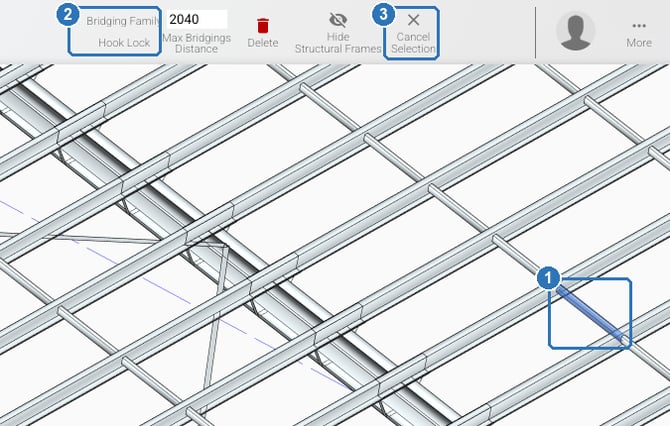
(1) Select the bridging member in the model; it is highlighted. (2) Bridging Family shows the family it uses, here Hook Lock. (3) Cancel Selection releases the member without changing it.
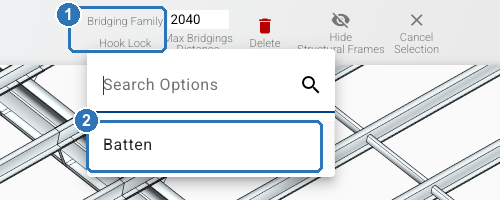
(1) Open Bridging Family to see the families your company has. (2) Choose Batten or Hook Lock as the design requires. To look without changing anything, press Esc.
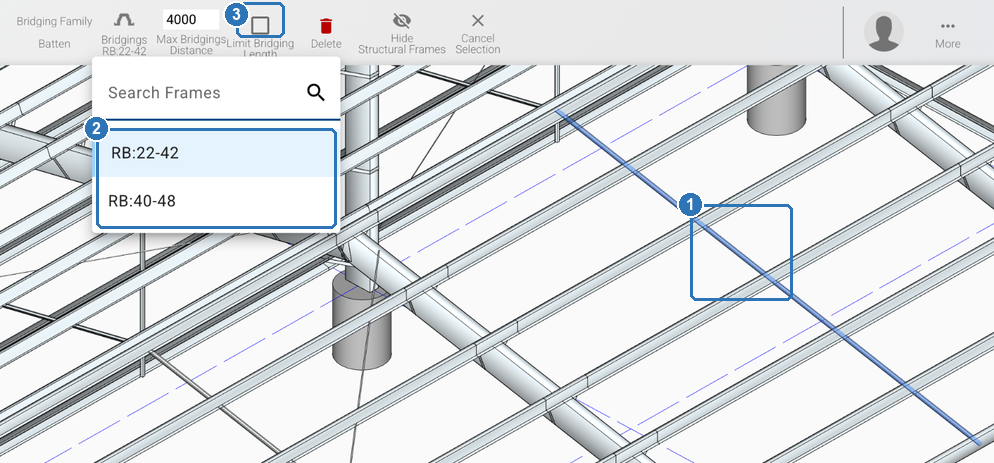
Beta example: Batten Bridgings and Limit Bridging Length. Select to enlarge.
Keep frame changes separate
Changing the bridging selection leaves the purlin selection in place. It does not confirm that the new bridging is suitable or approved.
Changing Purlins under Structural Frames or Awnings Frames is a separate structural change. With Match Purlins And Girts selected, the girt selections follow the purlins. Only make these changes as part of the intended design, and have the result checked through your usual engineering arrangement. If you use your own engineer, keep that review with them.
Check the quote and order
Before issuing a quote or ordering materials, check the selected bridging is included and correctly priced and quantified. Confirm the linked price item, calculation, quantities and supplier units match what you intend to buy.
A design selection alone does not guarantee a complete or correct order. If you already have an Instant Quote or Instant Order, check its source is current and review the affected lines after updating it. Do not assume an existing order has changed automatically.
Need help? Reply to your onboarding email or contact support@shedmate.com.au with the job name, the affected area and the bridging you need.