
Use Variables, Virtual Items and your order view's column settings to adjust how Instant Ordering prepares supplier quantities. Check the change on a test job before saving it for reuse.
Start with the latest version of the intended ordering database. Saving an older job's setup over a newer database can replace changes made by someone else. Your quote and your order also have separate settings.
Before you change the setup
- Use a test job and record the current quantities and settings you intend to change.
- Read the ordering database name and version in the footer. Check the current database version before editing.
- Keep a record of any changes already made on this job before loading another database. Loading replaces the job's packages, views, virtual items and variables.
- If the controls are unavailable, ask your database administrator or ShedMate support. Access depends on your setup and permissions.
Find the setting you need
Open the job and select Orders. On the Instant Ordering screen:
| To change | Open |
|---|---|
| A stock length that has been set up as a variable | Variables |
| Which model items a virtual item reads or how it calculates quantities | Virtual Items → Open |
| How quantities are displayed in a supplier view | View's three-dot menu → Configure Columns |
| A quoted price | Instant Quoting → Pricing Database |
Ordering variables and quoting variables keep separate values, even when they have the same names. Check both when a change affects the quantity you buy and the quantity you charge for.
Adjust a stock-length variable
- In Orders, open Variables.
- Find the variable used for that product or stock length.
- Check its units and existing value before changing it. Use your supplier's available length.
- Review the resulting order quantities and lengths on the test job.
A variable only affects formulas that use it. If a length is written directly into a formula, changing a similarly named variable will not update it. Ask your database administrator to check the calculation rather than changing unrelated settings.
Check a virtual item before editing it
A virtual item can turn model quantities into the quantities you buy, such as insulation runs into rolls. Open Virtual Items, find the item and choose Open from its row.
The editor has four steps:
- Identity: name, descriptions and scope.
- Source: the model items it reads and the rules that select them.
- Output: the category and subcategory of the generated order rows.
- Properties: fixed values, variables or formulas used to create those rows.
Check the existing source, scope and formulas before changing anything. Names and descriptions may also be used in matching rules, so rewording them can affect other calculations.
Keep the intended scope. Do not add Quoting or change Source and Output just to fix an order quantity. A duplicate virtual item is independent of the original and can create duplicate quantities. Delete is beside Open, so check the action before clicking.
If a formula contains product names or roll lengths, those values must match the intended products. Use the formula already set up for your database as the starting point. A formula copied from another catalogue may omit a product or calculate the wrong quantity.
Check whole-number quantities in a view
- Open the supplier view you want to check.
- Open its three-dot menu → Configure Columns.
- Open the gear beside Qty to see Rounding and Decimals.
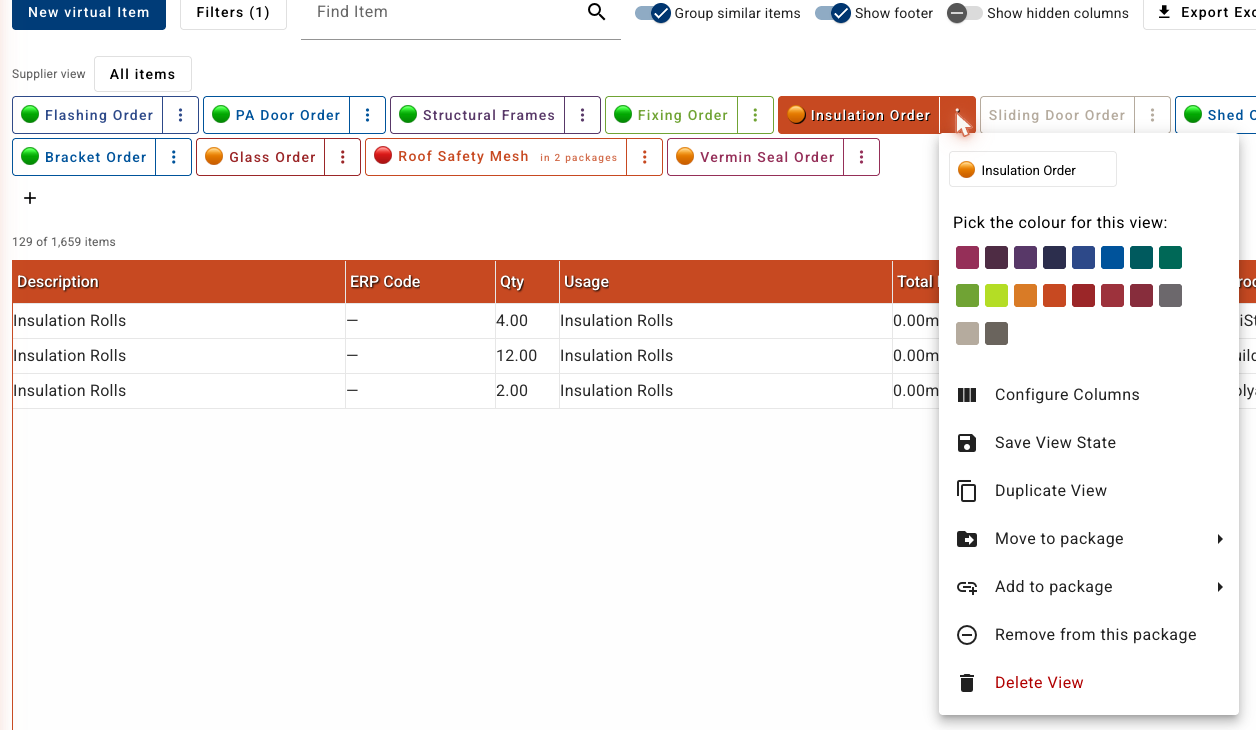
For products bought as whole units, Round Up may be appropriate. Confirm the unit first: a whole roll and a whole metre are different quantities.
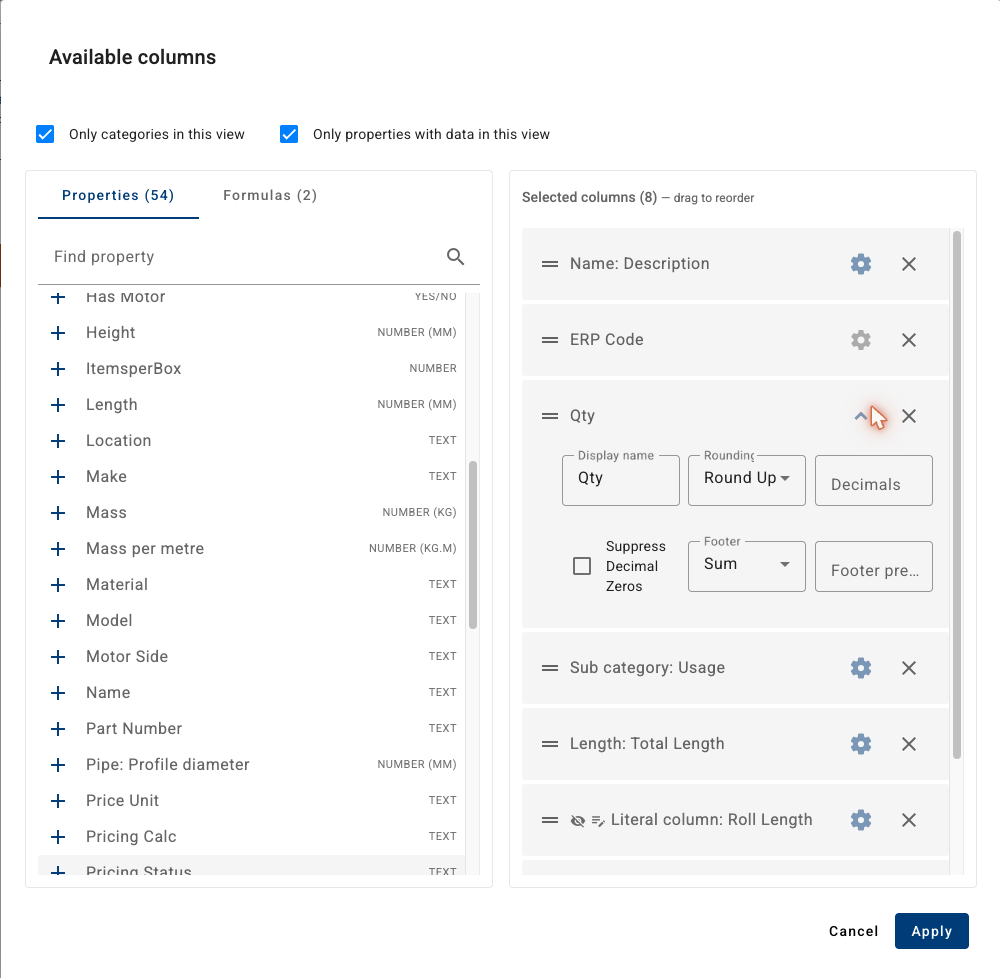
After making an intended change, choose Apply, review the quantities, then use Save View State to retain the view configuration. Check repeated items and different lengths with the view's intended Group similar items setting. Check the exported quantities too; do not assume that hiding decimals produces the required order quantity.
The screenshots show an example setup. Your view names, products and quantities may differ.
Save the job and database deliberately
Save Ordering saves this job's ordering version. More → Save as Database saves the job's setup as a reusable procurement database. These are separate actions.
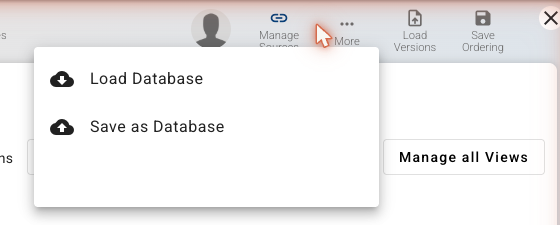
Before saving a database:
- Read the loaded database name and version in the job's footer.
- Open More → Save as Database and find the intended card, marked this job's source.
- Compare the card's Currently version with the footer. If they differ, cancel. Preserve your work and load the current database before reapplying the intended change, or ask your database administrator to reconcile it.
- Check the database name again before selecting its card. Selecting a card saves a new database version immediately.
The save dialog says it publishes the job's packages, views, virtual items and variables. It does not merge your changes with someone else's newer setup. Do not use another database's card to save this job's setup accidentally.
If asked whether to save the ordering too, choose according to whether the job should retain the new state. Saving a reusable database does not automatically move every existing job onto it.
To update an existing job, use More → Load Database, or the footer's update available control when shown. Read the replacement warning before continuing. Use the database name rather than the adjacent icon buttons. Load Versions opens earlier versions of this job's ordering; it is a different control.
After intentionally loading a database, Refresh, check the order and Save Ordering if you want the job to retain that state. Avoid replacing the setup on a sold job without checking the effect first.
If the quote and order disagree
Check both the calculation inputs and the source model. A correctly rounded order view cannot correct an outdated bracket conversion or a different product selection.
For work supplied through the Bracket System, use the current shed and intended bracket preset, then Sync Frames → Sync Stock Items → Save. Return to Orders, Refresh, and check the expected components. Loading a database or seeing Missing Items (0) is not proof that the order is complete.
If insulation is quoted per roll in your setup, check the quoting price unit and the roll-count calculation separately from the ordering quantity. Confirm the product name, roll length and units on both sides.
Related help
- Getting started with Instant Ordering
- What are virtual items, and how do I set one up?
- Check your order against the model before you send it
- Set up your supplier views for ordering
Need help? Email support@shedmate.com.au with your company, job and item name, the quantity you expected and a screenshot of the result.